Author: admin

  • How to shrink .pck size in Godot (and other tips for HTML5 mobile export)

    If you exported your Godot game to HTML5 and the exported files are much larger than the underlying project assets, then this document is for you.


    Recently, I created a game in Godot 3.6 (GLES2) where the main assets were 448 images in a TileMap. I’d optimized these images so they occupied 9 MB in the Godot project folder but exporting the game to HTML5 ballooned it to 93 MB.

    Many others have had the same issue.

    The reason for the bloat: Godot’s internal format for images

    My mistake was optimizing my images before adding them to the Godot project.

    I converted my JPEG files to an 80% optimized WEBP – only for Godot to do it’s own internal conversion to PNG when I imported them as “Lossless” images. This conversion can increase your asset size by 10 times.

    I eventually worked out a few rules:

    1. Do not pre-convert or pre-optimize your image files. Keep the asset at full-quality in your Project directory.
    2. Try to use the “Lossy” compression in your Import tab.
      • Adjust the quality level of your asset through Godot’s “Lossy Quality” setting. Let Godot perform the optimization for you.
      • Remember to press “Reimport” each time you change a setting!
    3. Use “Losless” imports only if your source image has to be in PNG format, then “Lossless” is a good choice (see Appendix A)

    The rationale for these rules

    No matter what format your image files are in, Godot will convert them to one of 4 file types:

    Compression ModeInternal File TypeNotes
    LosslessPNGDoesn’t allow you to adjust the quality of your image to save on file size.
    LossyWEBPLets you control the compression level. Use the Lossy Quality slider in the Import tab.
    Video RAMVRAM CompressedFaster to load and use in the GPU – but takes up more space on disk
    UncompressedVRAM UncompressedEXR textures, HDR image formats

    (Additional reference for “Lossy” being WEBP and “Losless” being PNG)

    Godot’s compression settings in the Import tab

    The difference Compression Mode makes

    To demonstrate the difference these Import settings make on the final HTML5 game, I created a sample game in Godot 3.6 (GLES2). The entire game is just 5 copies of the JPEG image below:

    Original JPEG: 512×512 (225 KB)

    PCK Files
    When you export your game, the .pck file is a compressed file that packages up all your code, image and audio assets. Everything that’s unique to your game is in this one file.

    This is one of the two largest files in your export. The other is the .wasm file.


    Each copy was imported with different compression settings. After exporting the game, I explored the resulting PCK file with the Windows program “Godot PCK Explorer” by Dmitriy Salnikov (archived version here). At a glance:

    How the images appear in the .pck file after export

    All these JPEG files are converted to a .stex file (StreamTexture), which is Godot’s internal representation for images.

    This is a neater table showing the disk space every variant takes up:

    JPEG Import Settings.stex File SizeNotes
    Lossy, 80% quality46 KB
    Lossy, 100% quality129 KBHere, we are converting a JPEG to a WEBP at full quality.
    Pre-import JPEG225 KB
    VRAM, 80% quality256 KBI exported Desktop + Mobile Compressed VRAM. I believe that the images won’t show without that.

    128KB for Desktop + 128KB for Mobile = 256 KB in Total
    Lossless309 KBConverting the JPEG into a PNG internally baloons the size by 37%. We’re better off converting to Lossy.
    Uncompressed768 KBI’m not sure why this increases the size of the image so much. Email me if you have an explanation

    Setting a lower “Lossy Quality” on images boosted the startup speed of my game previews during development. I recommend that you import at a very low quality for dev and re-import at higher quality just before final publishing.


    Based on the above, my recommendation is to use full-quality assets in your Godot working folder. You can adjust their quality downwards later using the Import tab. By doing that for my project – putting full-size JPEGs in the working folder but importing them as 80% lossy – my HTML5 export went down from 93 MB in size to 33 MB.

    Side note: how to re-import many images at once

    To change your import/compression settings for many images at one time, go to the FileSystem area and select multiples by pressing down the Shift button and clicking around. Then, you can change the Import settings and click Reimport. Note how the screenshot below indicates “13 Files” selected:

    Can I save space by using .SVG files?

    Godot flattens .svg files from a vector to a raster format. That means that you lose all the filesize and infinite-scalability benefits of this file format.

    As per the Godot 3.6 Documentation:

    SVGs are rasterized using NanoSVG when importing them. Support is limited; complex vectors may not render correctly. For complex vectors, rendering them to PNGs using Inkscape is often a better solution.

    Godot 4.4 uses ThorVG for rasterizing SVGs. But the result is the same: you don’t gain anything by using vectors over .png or .jpeg files.

    When an image starts out as an SVG, its exported size on disk does not change based changes to its dimensions in the Editor.

    My experimentation showed that a simple 3 KB .svg file increased to 17 KB in the .pck file, while a complex 89 KB .svg file became 85 KB in the final export (but quality suffered).

    Turn off “Export with debug”

    When exporting the final project – at the very last step – you’ll see a discreet “Export with Debug” checkbox that’s on by default. Check it to “off” when publishing the final version of your game.

    This removes debug features/symbols from the final game. Unchecking the box made my game go from 38.5 MB in size to 32.8 MB – a 15% space savings.

    Get rid of orphan assets

    Godot 3.6 has a basic feature that shows you game assets that aren’t being referenced from anywhere. Go to Project > Tools > Orphan Resource Explorer to see these “orphan assets”. You can then delete them from your game to free up space in the final .pck export.

    Advanced: shrinking the WASM file

    The two biggest files in your game export are the .pck file (containing all your unique assets) and the .wasm file.

    The .wasm file is the Godot game engine. It is the universal “base” code that performs all the functions that your game relies on. The .wasm file is about 20MB in size.

    You have two options if you want to shrink the size of the game engine itself.

    Option 1: compress the WASM file

    (This section only applies if you host your own game. If you plan to host your game at Gitlab/Github/Itch.io then skip this.)

    First, we need to make sure that .wasm files are served with a MIME type of application/wasm to take advantage of certain startup-time optimizations (source: “Exporting for the Web“)

    If your hosting provider uses CPanel, you can set up a custom MIME type definition by going to “Advanced -> MIME Types”.

    Now we can move on to compressing the .wasm file.

    Compress “on the fly”

    You can set up “on the fly” .wasm compression and it will serve a smaller file to visitors, at the cost of higher CPU usage. If you expect lots of players then skip this section and go to the next one.

    On CPanel, you can set this up by going to the “Optimize Website” section. Go to the “Manage Compression” area. In “Compress the specified MIME types” set up application/wasm as one of the compressed types.

    If you can’t find “Optimize Website” then your host probably has it disabled.

    Pre-compress

    You can compress the .wasm file ahead of time, and have your web server return the compressed version whenever it is available.

    First, compress your .wasm using the gzip algorithm. Save it with a .gz extension (so if your original was index.wasm then the compressed file is index.wasm.gz):

    Upload the .wasm.gz file to your server, into the same folder as your original .wasm file.

    Add this code to your Apache .htaccess configuration:

    <IfModule mod_headers.c>
        # Serve gzip compressed WASM files if they exist
        # and the client accepts gzip
    
        RewriteCond "%{HTTP:Accept-encoding}" "gzip"
        RewriteCond "%{REQUEST_FILENAME}\.gz" "-s"
        RewriteRule "^(.*)\.wasm"             "$1\.wasm\.gz" [QSA]
    
        # Serve correct content types, and prevent double compression.
        RewriteRule "\.wasm\.gz$" "-" [T=application/wasm,E=no-gzip:1]
    
    
        <FilesMatch "(\.wasm\.gz)$">
          # Serve correct encoding type.
          # Header append Content-Encoding gzip <--- was doubling up the gzip content encoding value
    	Header set Content-Encoding gzip
    
          # Force proxies to cache gzip &
          # non-gzip wasm files separately.
          Header append Vary Accept-Encoding
        </FilesMatch>
    </IfModule>

    (adapted from https://httpd.apache.org/docs/2.4/mod/mod_brotli.html#precompressed )

    Now, when a visitor requests a .wasm file, the server will first check for the existance of a .wasm.gz variant – and would serve up the gzipped file if available.

    This optimization shrank my index.wasm file from 19 MB to 5 MB – a 73% decrease.

    Option 2: recompiling Godot

    The second thing you can do to shrink the game-engine is to cut out unnecessary features from Godot. For example: if your game is in 2D, then you can safely remove all the 3D capabilities of the Godot engine.

    Recompiling Godot is beyond my skill level.

    Check out this detailed post by Popcar on which Godot features are safe to cut out. The actual recompilation process uses the “scons” tool – Popcar links to a post with some details, but it’s probably best to start with the official Godot documentation on “building” the application.

    Other mobile-friendly tweaks for your game

    These are adjustments I had to make to my HTML5 export in order to get my HTML5 game working well on mobile.

    Keep Lossy files under 16,383 x 16,383

    Godot stores “Lossy” files as .webp behind the scenes. The .webp file format definition limits images to a maximum size of 16,383 by 16,383 pixels. You will run into problems if you import a Lossy file bigger than this into Godot.

    Animation shows up as a black box? Image size limits on mobile

    Many mobile device processors can only handle images smaller than 4,096 by 4,096 pixels. If your images or animations are showing up as black boxes, then it might be because your sprite-sheet image is bigger than that on a dimension.

    The solution is to get your sprite-sheet smaller than 4,096px on either side. You can do that by cutting out frames from the animation. If your sprite-sheet is long and narrow, you can also rearrange it to be a snaking rectangle.

    Going from this sprite layout:

    To this sprite layout:

    See this thread on the r/godot subreddit for more information.

    Huge background images? Split them into a TileMap of smaller ones

    If your game requires gigantic background images, consider splitting them up into into 512×512 tilemaps.

    You would first use a tool like imagemagick (Windows downloadable) to slide your files into a grid of equally-sized 512×512 images. Below is the code I used to split up a “terrain.jpg” file into smaller tiles that have the X and Y offset in their name:

    magick terrain.jpg -crop 512x512 -set filename:tile "%[fx:page.x/512]_%[fx:page.y/512]" +repage +adjoin tile_%[filename:tile].jpg

    Then, using ChatGPT, I (we?) created a Godot tool that reads a folder that contains these tiles, and populates a TileMap Node with the correct image tiles – placing them in the offset defined in the name of the file.

    To reduce the number of tiles in the final export, I deleted “empty” .jpg tile files from the folder. We don’t need to place tiles that are not visible in the game anyways…

    TileMaps on mobile: shrink your “Quadrant Size” to 1

    Does your HTML5 game get into an infinite loading loop on mobile devices? Does it display a message like “HTML5 canvas appears to be unsupported in the current browser.“?

    I was running into this problem and it was related to the TileMap nodes that I had in my game.

    Set your TileMap’s “Quadrant Size” to 1 if you want to improve performance on mobile devices:

    What is “Quadrant Size”? According to Godot’s documentation:

    A quadrant is a group of tiles to be drawn together on a single canvas item, for optimization purposes. rendering_quadrant_size defines the length of a square’s side, in the map’s coordinate system, that forms the quadrant. The default quadrant size of 16 groups together 16 * 16 = 256 tiles.

    By default, Godot will instruct your device to deal in 16 x 16 tile blocks. I don’t know about your device, but my crappy cracked-screen Android could only handle 1 x 1 blocks. Even when I had “Quadrant Size” set to 2, I was getting infinite loading loops…

    Audio jitter in HTML5 games

    If your background music experiences jitter or cuts out randomly, increase the audio latency in your project.

    Go to Project > Project Settings > Audio. Click the actual “Audio” heading and set a “Output Latency.web” to 80 . This will increase the size of the audio buffer so playback is not choppy. I couldn’t find the original post where I saw this, but a person experimented with different latency settings an the jitter went away at the 80 level. This level solved my problem, too.


    That’s it

    Go forth and make games!
    If you see a mistake in what I wrote (unlikely because I am perfect🌸), or have your own tips that I can link to/add, then reach out to me at my first name at this site. I want to hear from you.

    You can also play the gritty British canal boat game that prompted this post.


    Appendix A: .stex sizes for an imported PNG file

    I tested the impact of different import settings on PNG files, the same as I did with JPEGs. The original .png file was 112 KB in size.

    PNG Import Settings.stex File SizeNotes
    Lossy, 80% quality8.4 KB
    Lossy, 100% quality26.3 KBConverting the PNG to a WEBP at full quality
    Lossless63.9 KB
    VRAM, 80% quality64 KBI exported Desktop + Mobile Compressed VRAM. I believe that the images won’t show without that.

    32KB for Desktop + 32KB for Mobile = 64 KB in Total
    Original PNG112 KB
    Uncompressed256 KB

    Note that, for PNG, the Losless setting reduces it’s size (while bloating up the size of a JPEG). I believe that’s because an Godot’s behind-the-scenes conversion from PNG to PNG is much more efficient than one from JPEG to PNG.

    For another comparison of sizes, see this post by user Denxel on Reddit.

    Appendix B: code for a Godot Editor tool that populates a tilemap

    Notes:

    • This is a “tool” and it runs only in the Godot Editor itself
    • This tool script is attached to a Node2D that’s a child of the main scene’s root node. It only fires when you flip away from the main scene’s 2D view and back again.
    • The code populates 2 nodes with 2 sets of tiles.
    • One Godot Node is supplied in “terrain_path” and another in “canopy_path”
    • The res://assets/level/terraintiles path is the folder where all the “Terrain Tiles” 512×512 .jpg tiles are stored
    • For any complaints, email my developer, Chad G. Petey at 123 Main St. Townsville, OH.
    tool
    extends Node2D
    
    export(String, DIR) var terrain_tile_folder = "res://assets/level/terraintiles"
    export(String, DIR) var canopy_tile_folder = "res://assets/level/canopytiles"
    export(NodePath) var terrain_path	# assigned in the UI through the inspector
    export(NodePath) var canopy_path	# assigned in the UI through the inspector
    export(int) var tile_size = 512
    
    func _enter_tree():
    	print("tool ready")
    	if Engine.is_editor_hint():
    		generate_tiles(terrain_path,terrain_tile_folder)
    		generate_tiles(canopy_path, canopy_tile_folder)
    
    # tilemap_path - node path, set in the UI
    # tile_folder - res:// folder with tiles
    func generate_tiles(tilemap_path, tile_folder):
    	var tilemap = get_node_or_null(tilemap_path)
    	if tilemap == null:
    		push_error("TileMap node not found at path: " + str(tilemap_path))
    		return
    	
    	# Clear all existing cells
    	tilemap.clear()
    	# Optionally reset the TileSet
    	tilemap.tile_set = null
    	
    	var tileset := TileSet.new()
    	var tile_id = 0
    	var tile_ids = {} # filename => tile_id
    
    	var dir := Directory.new()
    	if dir.open(tile_folder) != OK:
    		push_error("Cannot open tile folder.")
    		return
    
    	dir.list_dir_begin()
    	var filename = dir.get_next()
    	while filename != "":
    		if not dir.current_is_dir() and (filename.ends_with(".webp") or filename.ends_with(".jpg") or filename.ends_with(".png")):
    			var tex = load(tile_folder + "/" + filename)
    			tileset.create_tile(tile_id)
    			tileset.tile_set_texture(tile_id, tex)
    			tileset.tile_set_region(tile_id, Rect2(Vector2(), tex.get_size()))
    			tile_ids[filename] = tile_id
    			tile_id += 1
    		filename = dir.get_next()
    	dir.list_dir_end()
    
    	tilemap.tile_set = tileset
    
    	# Place the tiles in the TileMap
    	for fname in tile_ids.keys():
    		var parts = fname.get_basename().split("_")
    		if parts.size() == 3:
    			var col = int(parts[1])
    			var row = int(parts[2])
    			tilemap.set_cell(col, row, tile_ids[fname])
    
  • Tanaka Isson

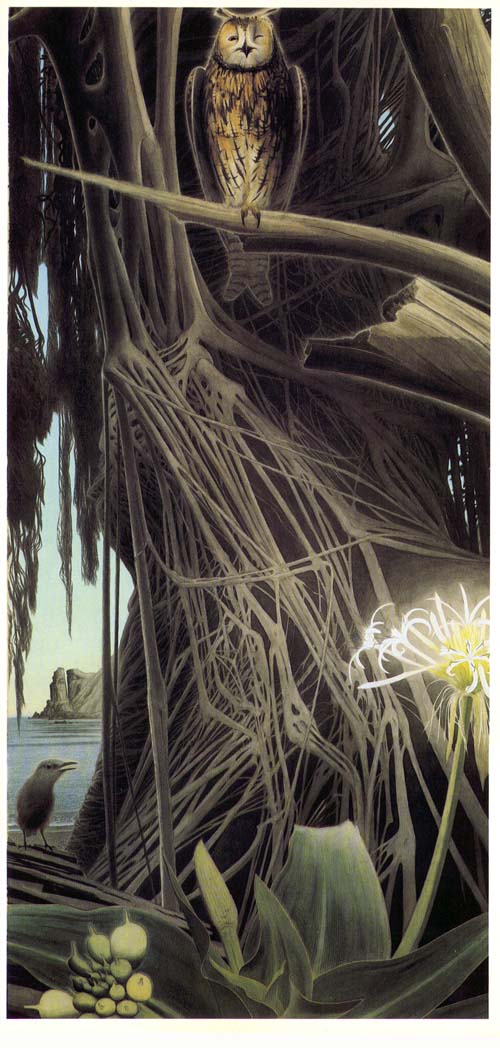
    Tanaka Isson (1908-77) was a Japanese painter who was rejected by the art establishment. In 1958, he decided to leave the Japanese mainland and moved to a small tropical island named Amami Oshima – halfway between the main Japanese islands and Okinawa.

    Take a look at these otherworldly paintings of island wildlife:

    You can read a short summary of Tanaka Isson’s life in this 2018 Japan Times writeup.

    To see the lush nature of Amami Oshima, I recommend watching one of the videos below. They’re by TV Treasure Peter Barakan and you can watch them without ads on NHK:

    AMAMI OSHIMA: Isson’s Treasure Island (49 min)
    and the Japanology Plus episode Amami Oshima: Paradise Found (28 min)

    This island is so lush and beautiful. It’s really something else.

    source

    I found it interesting how someone so good was in complete obscurity from the world. He was only “discovered” after his death in 1977 – when it turned out that his modest house was stuffed with artwork.

    I read an observation that people who got famous became famous because that’s what they worked for. They didn’t work on “becoming good”. The observation was that being good and being famous are completely separate qualities that a person could optimize for.

    To learn more about Isson, you can search for his alternative names: Tanaka Takashi (田中 孝) and his art name Tanaka Isson (田中 一村).

    Alocasia and Sago Palm. Isson considered this painting the pinnacle of his achievements.(source)

    source

    Want more Japan?
    Cram these in your eyeballs!

    If you want more Jungle imagery

    Check out the work of artists Fred Engelbert Knecht and Albott Bonhomme.

  • Cat Demon Returns

    So, a while back my wife caught a cat demon and many readers wrote in to find out how the demon is doing and what came of it.

    I haven’t written back because, frankly, I had no clue. Until now.

    Yesterday I was scrolling on the socials, when I saw a familiar face come up on the feed. As you can see, Cat Demon is all growed up and having fun at the seaside:

    Umegae muken no mane 梅が枝無間の真似 (Parody of Umegae Striking the Bell of Limitless [Hell]) / Ryuko neko no tawamure 流行猫の戯 (Fashionale Cat Games)

    Being nosy, I went into her profile and she’d posted a lot of pics of her hanging out with the girls:

    Looks like she’s got a special guy in her life:

    source

    But she doesn’t always make good choices. Here she is with the same guy playing some game called “Stinky Sleeve”?! (Japanese readers born before 1900, hit me up if you know what the youths are doing here)

    The Scene of Torture by Scolding from The Stinky Sleeve (Tamoto funki kogotozeme no dan), from the series Popular Cat Games (Ryûkô neko no tawamure)

    All these prints are by Utagawa Kuniyoshi and Dear Reader – he’s got some bangers! Check out these other cat prints:

    Giant snow cat

    Miscellaneous animal abuse:

    (In that last guy’s defence, the snake did try to eat his Magic Toad friends…)

    There are also some primo ghosties:

    Utagawa Kuniyoshi also created a print of this guy with fantastic wide-leg pants. Great wild hair. Just like the wolf in the internationally beloved cartoon Nu Pogodi:

    There are very dynamic images of samurai in battle. I especially like the ones that include warfare with gunpowder, because it’s not what you’d expect from samurai.

    There are also some fascinating prints from a play called 新板越白浪 about a historical female bandit (Kishin Omatsu) and her ninja troop.

    She would wait by a stream. When a samurai would happen to pass by, she would ask them for help getting across. The samurai would carry her over on his back – while crossing, she would take out a blade and slice his throat open.

    From Waseda University Cultural Resource Database, Artwork no 101-1174, Group 201-2752

    I couldn’t resist popping Tsukioka Yoshitoshi take on the subject here. Feel that energy:

    From Wikipedia

    Leftovers

    For more Kuniyoshi than you can shake a stick at, visit the Waseda University Cultural Resource Database and search for artist name “国芳”.

    It’s possible to buy some pretty neat ukiyo-e prints just like the ones above. Just be careful on e-Bay, it looks like people are selling modern reprints (using the original wood blocks) and not making it obvious – if it looks too good to be true, then think twice about buying it.

    More Japan posts:

  • Tips from a solopreneur

    I recently read a useful post by the founder of Zigpoll, an e-Commerce contextual survey tool. In it, Jason shares his insights about being a solo entrepreneur. They really resonate with my own experience. My faves:

    I was convinced that if you build it, the people will come. I assure you, no matter what you are building, they will not.

    I find that building a great product is predictable. A solo-developer generally knows that putting in X effort will predictably lead to a Y outcome (a functioning product). Sales and Marketing are unpredictable. Most solo-founders underestimate how chaotic customer acquisition is… and they often deal with it by ignoring the risk. I highly recommend Eric Ries’ Lean Startup book for anyone who wants to de-risk customer acquisition before investing energy into fully building a product.

    I also want to link to Lenny Rachitsky’s post with the “1 growth engine” that various big businesses use to acquire customers. There’s often just one, and a business milks it for all it’s got:

  • Jacob Eats: the Kloud

    Microsoft Azure, AWS, Google Cloud Platform – the Cloud is transforming the world of computing. We use the Cloud. But when I saw the chance to eat the Kloud I jumped at the opportunity!

    Come along this tasting journey with me to find out what is the Kloud? Will my bowels survive it? Have I finally found a ridiculously-named snack that also tastes good?

    Reader, this is “The Kloud”:

    It’s not a digital server farm somewhere in Utah. It is a “dried pollack snack”. Little dried fish covered in a salty batter.

    Opening the pouch, the first thing that hits you is the smell: intimidatingly fishy. Like Asian shrimp crackers but with a stinky garbage finish.

    Then, you’re struck by the stingy portion. The bag is less than half full:

    The fish nuggets have an anaemic yellow colour, kinda like fries. The outside is made of batter with visible crystals – probably salt or some additive. You can see brown bits of the fish flesh peeking out of gaps in the batter.

    When you bite down on one of these you get a very crispy crunch. The fish itself is totally dried so the crunch is from the flesh and bones, not from the batter on the outside (something I actually liked!).

    The biggest taste is sweetness – like sweet snack crackers. The fish flavour is very mild. I was looking forward to a funky fish punch, but it never came. Mascarpone cheese is listed in the ingredients but there was no cheese punch either.

    Ingredients of Kloud Original flavour. I have no Klue how these ingredients end up tasting soooo sweet.

    Unpunched, I went on with chewing down the fish bits. Each piece tastes different depending on its size and fish-to-batter ratio. Small pieces are too sweet and salty. Big pieces are tolerably salty and have a bit more fish flavour.

    There is surprisingly little aftertaste. Like a salty little nothing that came and went, just like that (wait… are you that fish snack from Vacation Bible School?)

    Eating them with beer:

    According to some Kloud pouches, this snack is best enjoyed with beer. So I decided to try out the Kloud Knuggets™ (the ™ is mine, I invented the name just now) with some Sapporo beer. Just in case they are optimized for a great beer experience.

    Real Men™ drink from the strawberry cup

    Dear Reader, they are not.

    Their subtle flavour is drowned by the beer. Which is… good? I guess? If you hate sweet fish crackers?

    These Knuggets™ would’ve tasted better with beer if they had more spice or a stronger fish taste.

    Verdict

    I give the Kloud two fish out of five: 🐟🐟

    This treat reinforces the main moral of “Jacob Eats”: you shouldn’t pick your food based on a jokey name. If you want a funky treat to eat with your beer, stick with the tiny dried shrimp you can find at Chinese supermarkets. They’re meant for stir-frying but taste quite good raw*.

    * By reading this statement you acknowledge that the author of this blog shall not be held responsible for any food poisoning or gastric parasite infestation you may develop as a result of eating dry, uncooked shrimp.

    For more “Jacob Eats”

    Why would you do this to yourself?

  • Tiny walrus in a fedora

    I really liked a recent post by Adam Mastroianni about the small fact that actually “being yourself” will make you feel crazy.

    So in the end I went as the real me, a normal guy who was in the process of becoming a wacko, like a caterpillar who had snuggled up inside his cocoon and was soon to emerge as a, I dunno, a teeny tiny walrus in a fedora.

    The idea of a normal person transforming into something more wacky and delightful really resonates right now.

    Deeper in the piece, Adam’s actual point is that conforming and sticking to tradition are very valuable survival traits. This reminds me of Episode 6 of the Drew & Natalie Have A Normal Conversation podcast:

    D: I've gone feral a little bit.
    N: A little bit. I mean, you've always been like a lone wolf, though.
    D: A lot a bit.
    N: Yeah.
    D: I know people have talked about this, and I've seen people mention this, the idea of lone wolf. It's like it sounds very cool. It sounds like Airwolf, which was a very cool helicopter. Right.
    N: Sure. Sure.
    D: But one thing people point out is that wolves are very much pack animals. So if you're a lone wolf, it's not so much you're cool.
    N: Well, that means you're a wolf with no friends.
    D: Oh, that wolf is... Hey, check out that wolf. He's very sick.
    N: He's been ostracized.
    D: The wolf's behavior is putting the other wolves off.

    Adam’s substack is an absolute treasure. Go check it out.

  • Experiencing a Victorian London street in 3D

    Between the years 1838-1847, John Tallis published 88 booklets with streetscape views of London:

    View of Aldersgate and St Martens Le Grand

    Before visiting a new neighbourhood, intrepid Londoners would use these as guides. Each booklet street facades, a mini-map of the area and a realistic illustration of a landmark (all drawn by Charles Bigot).

    The booklets were very cheap because Tallis stuffed them with advertisements.

    Cover to the No. 45 “Wellington Street, London Bridge” booklet – from the Internet Archive

    Each one contained about 5 pages of business ads. It’s likely that Tallis also charged merchants to have their business’ name engraved above their store on the street level.

    Tallis’ booklets were like an early “Google StreetViews” and I posted a link to a scan of all 88 to a website for curious technologists. What happened next made me go down a rabbit hole 🐰🕳️

    Some of the 88 zoomable maps on the David Rumsey site.

    There was a lively discussion and user fritzo said the following:

    Feature request, can someone integrate this into the DOOM engine so one can navigate 19th century london?

    Yeah, I wasn’t going to do that.

    I’ve never made a 3D environment.

    Never even made a DOOM map when that game was popular (hi, it’s me, your grandpa).

    But the idea stuck in my head.

    And stayed.

    And stayed.

    And, I thought: “how hard could it be to make rectangular slabs and skin them with the images from the maps and put them in an online 3D engine and maybe pop a catsmeat man in the scene?”….

    Well, Dear Reader, here is your chance to enter a proof-of-concept 3D version of Tallis’ Street Views:

    Delightful on desktop. Monstrous on mobile.

    Making the 3D streetview

    My idea was to texture-map Tallis’ images over simple rectangles to create a “street”. I started looking for a 3D engine that was free, could run in the browser and would have a simple First Person mode to permit walking around.

    I settled on the the CopperCube 3D engine. A simple and easy to learn game engine that could publish to the Web.

    Screenshot of the 3D world in the CopperCube editor

    Next, I had to find the highest quality scan of one of Tallis’ views. Then cut it up into rectangular sections for each side of the street.

    The best image scan was booklet No. 45 from a sale listing at Barry Lawrence Ruderman Antique Maps Inc. The image is set up as an OpenSeaDragon zoomable image and comes in at a huge 53 MB.

    One hitch with zoomable images is that you can’t simply “save as” to your computer. That’s because they’re made up of hundreds of separate images that your computer stitches together on the fly.

    Thankfully, a tool called Dezoomify let me combine the zoomable tiles and download them as a single PNG file.

    After editing and cropping the streetview, I went ahead and created a proof-of-concept scene in CopperCube. It’s imperfect – like “the walls don’t align” imperfect – but it was fun to make. In addition to the street facades you’ll see the map of the area, a detailed illustration of a particular business, and several orbs that open webpages with information about those specific locations (make sure to “allow popups” when they come up). If you haven’t checked out the 3D experience yet, go ahead and click below:

    If you were to expand this kind of 3D environment, you could add historical characters and their stories to the scene. You could also lay out streets according to their actual geometry on a map, using the real width of the pavement and real height of buildings.

    Personal observations

    Actual London, in 1870

    Working on this project, one of my takeaways is just how sterile Tallis’ street illustrations look. They’re very focused on the commercial life of the buildings. I get it – these booklets were financed by advertisers, and they wanted to present a clean view of life. The real life on the streets of London would’ve been brutal, smelly and dirty. We’re talking the people wearing every single garment they own at once kind of dirty.

    During the online discussion of Tallis’ Street Views, one talented technologist ran the etchings through an AI colourizer. Here’s an example of a colour output:

    This is an interesting use of AI and really livens up the landscapes. However, if you wanted to make an accurate representation of London buildings, you’d have to show the colours of the actual material/cladding. Note how, some of the other colorized images in the album show excessive numbers of trees on the street and others show the kind of stucco-clad buildings that are typical of Florence, not London.

    In my experience, off-the-shelf AI colourizers mangle the Tallis etchings and alter the image so it only loosely resembled the original. Here’s a before-and-after example of this heavy alteration:

    I heard a lot about AI tools that take 2D images and turn them into 3D models. I tested out several of them.

    A reliable and simple tool for turning 2D pictures into 3D is the “ZoeDepth” algorithm that you can try on Hugggingface: https://huggingface.co/spaces/shariqfarooq/ZoeDepth . It works best on pictures and photorealistic etches. It did not do well on the Street Views engravings.

    Example of ZoeDepth turning a 2D image into a 3D model

    There’s an cool related animation you can generate with Immersity AI, but it doesn’t let you export a useable 3D model:

    Most of the AI tools were flops – there is a lot of misinformation about AI’s capabilities.

    The most capable tool of the bunch was Meshy.ai (refer-a-friend link!). The tool is optimized for generating characters and objects, rather than “environments” – so it failed when I fed it a whole street facade with dozens of buildings:

    Would you open a business on these premises, Meshy? I didn’t think so!

    When I fed it an image of a standalone building, it did much better:

    Note how the AI added in an extra set of windows and columns on both sides of the entrance (3 in each row, rather than 2). This model is not quite true to the original.

    I tried its neat “generate a texture from text prompt” feature. The result was underwhelming. Here is my prompt:

    The walls of the bottom floor are made of limestone blocks. the walls of the floors above are finished in stuccco, while the columns are made of light marble. This building is from London in 1840. Photorealistic style, high quality.

    And here is the output:

    You can see that the model latched onto “blocks of limestone” and clad the whole building in them. Meshy ignored directions to add stucco & marble on the upper floors.

    I decided to keep the facades as flat images in the 3D world, and o add the above “Town Hall” model as a toy object in the virtual environment. Unfortunately, it had an extreme level of detail (265,000 mesh faces) and came in at 27MB. Meshy’s paid tier lets you adjust the complexity of the model, and there are also standalone tools that let you simplify a 3D mesh. But I’ll leave that as an exercise to others. I just opted to embed an “orb” link to the finished model on Meshy’s site.

    [Edit: I also used Poly.cam to generate a 3D model of the same facade – it generated an accurate model with no hallucinations]

    [Edit from June 14, 2025] I tried generating a 3D object from the same facade with AdamCAD. Both the “Max Quality” and “Speed Demon” modes missed certain elements. I actually found the lower-quality model more accurate, and it looked like it had fewer vertices/embellishments (ex. it kept the back of the building as a plain wall) – which was better for my purposes. The .OBJ exports seemed to have something wrong with them – the simpler model was an 86MB file, while the more complex one was 4MB. However, the 4MB file looked very low-resolution in Copperlight.

    Finally, attempted to create “street characters” with Meshy to place into the 3D environment but they weren’t quite right. Finessing the models would take skill and time that I don’t have. Here are some of the funniest/worst options from that attempt:

    If you’re thirsty for more

    I already linked to a huge image of all 88 Tallis booklets. But the David Rumsey site also has zoomable images of individual streetviews and ad pages.

    If you want to see how a particular part of London looked in the past, Matthew Sangster created a map that shows where each of Tallis’ booklets is located. Once you find the number of the booklet, you cna find it on the David Rumsey site or on the Internet Archive.

    From Matthew Sangster – see full map

    There is a blog where someone does in-depth research into specific buildings that are featured in Tallis’ booklets. What went on in the building, as well as family history and dramas. I highly recommend it. But beware: this is a deeeeeep rabbit hole.

    For another resource that covers specific Street Views houses, do a search at the Survey of London website.

    If you like the intersection of technology and Victorian London, check out how this Victorian Room was rendered.

    If you’re still reading, then you’re a prime candidate for the hard stuff – London Labour and the London Poor. Here is Volume 1 of 4 that you can get online for free (or, if you’re like me, just buy the whole series; abandon it unread; then give it away to a friend).

  • QTVR files – preserving them and extracting embedded images

    QTVR files piqued my curiosity when I learned that the BBC had a virtual tour of a Victorian period room on its site:

    The tour was right there, but I couldn’t view it! The Victorian Room and all the other related tours, were created in 2014 in a format that’s been abandoned by browsers – the QTVR format.

    The “QuickTime Virtual Reality” (QTVR) format was developed by Apple to let you view an immersive panorama picture. You could click on “hot spots” to advance between scenes. Like an ancient Google Streetview from 2005. It was used on the web and in CD-ROM experiences like On Board the USS Enterprise.

    Extracting a QTVR file from a website

    Let’s say you found a website with a lot of virtual reality files, like this Columbia University Center for Teaching and Learning page. Most often, you’ll see a blank space where the panorama would’ve been:

    What disappointment looks like

    Often, you can get the file by right clicking on the page, and selecting “View Source”. Search for the text .mov – that’s the file extension of these QTVRs.

    “gotcha!”

    Copy and paste that path into the URL bar and “save as” to your computer.

    If your virtual tour file contains “hot spots” that let you advance between scenes, then you’ll have to dive into the file that you downloaded in order to find the “next URL” it links to.

    To do that, open the .mov file in a text editor (like Notepad++ or Windows Notepad). And search for .mov again. You’ll see something like the following:

    In the above screenshot “1Floor-7.mov” is the linked .mov file that you should download next. In our example, if the original file I downloaded lived on http://website.com/tours/tour1.mov then this next file from the screenshot would be hosted at http://website.com/tours/1Floor-7.mov

    Viewing the QTVR Contents

    If all you want to do is view the panorama/tour, then the best tool is QuickTime Viewer. This software was Discontinued in 2016 but is still available here: Quick Time 7.7.9 for windows (mirror of the file).

    Viewing the panorama with Quicktime 7
    > Panorama viewing tips from the QuickTime 7 User Guide <
    Viewing QuickTime Virtual Reality (QTVR) Movies
    QTVR movies display three-dimensional places (panoramas) and objects with which the
    user can interact. With a QTVR panorama, it’s as if you’re standing in the scene and you
    can look around you up to 360 degrees in any direction. In a QTVR movie of an object,
    you can rotate the object in any direction.
    To pan through a QTVR movie, drag the cursor through the scene. To zoom in or out,
    click the + or – button. (If the buttons are not showing, zoom in by pressing Shift; zoom
    out by pressing Control.)
    16 Chapter 1 Using QuickTime Player
    Some QTVR movies have hot spots that take you from one scene (or node) to another.
    As you move the mouse over a hot spot, the cursor changes to an arrow. To see all the
    places where you can jump from one node in a scene to another, click the Show Hot
    Spot button (an arrow with a question mark in it). A translucent blue outline of any hot
    spots within the currently visible VR scene appears. (If there are no hot spots, clicking
    this button has no effect.) Click a hot spot to jump to a new scene.
    To step backward scene by scene, click the Back button. (The Back button appears only
    on QTVR movie windows, not in all QuickTime movie windows.)

    Exporting standalone images

    The simplest way to export individual images from QTVR files is to take a screenshot of your QuickTime 7 window with the file open. I’m serious.

    For more modern versions of QTVR, you can export an entire scene using the FFmpeg video conversion tool. Download it from ffmpeg.org and add it to your computer’s PATH environment variable.

    Open the Command Prompt and navigate to the folder with your .mov file. Then run the following command:

    ffmpeg -i yourfile.mov %02d.jpg

    This should create 6 .jpeg files with names like “01.jpg”, “02.jpg” and so on – representing the entire scene:

    You may get a few dozen files in a horizontal/vertical strip that represents your photosphere. I recommend going to this online JPEG merging tool to combine them all into 1 whole – it’s more straightforward than other options I explored.

    You can quickly view your resulting file as a photosphere by uploading it to the Photo Sphere Viewer playground.

    Anders Jirås has a fantastic tutorial for extracting panoramas from QTVR files using FFmpeg (archive link). And even a tutorial for extracting panormas from SWF (Flash) files!

    The BBC’s virtual tour was created with an old encoding: Cinepak. So FFmpeg could not extract the images. I had to use an alternative:

    Creating a video from a VR sphere

    You can convert a QTVR file into a regular Quicktime video using the Pano2Movie application. The output video will show the viewport moving according to your recorded movements. That file should be simpler to convert to a modern format than the original QTVR file.

    Pano2Movie can also export your movements as a series of static images.

    Pano2Movie is hugely temperamental. It’s slow and takes tweaking. Some tips for generating a series of images:

    • First, you need to record a “path” through the panorama
    • Set the Frames Per Second. Below I have it set to 15 – so there will be 15 JPEGs exported for every second of movement
    • To reduce the number of images you generate, lower the “Duration” figure for the keyframes at the bottom of the screen.

    You can download Pano2Movie 2.0.2 for Windows from CNet. (local mirror). There is also a later version for Mac, 2.1.73.

    Stitching up a big panorama image

    You can combine screenshots / static pictures from Pano2Movie into one big image that you can view and use for interactive HTML5 photospheres. For that, you’ll need Microsoft Image Composite Editor (ICE). ICE automatically detects overlapping regions in your image and stitches them together.

    For the BBC Victorian Room, here are the Pano2Movie images I fed into ICE:

    And here is the output:

    Creating an interactive web panorama

    I’m going to recommend Pano2VR as a tool for converting old QTVR files to working interactive experiences. This tool looks especially friendly for creating multi-node journeys. It costs 450 Euros.

    Pano2VR could not handle the older Cinepak BBC file, but it could handle a newer panorama of the Words And Pictures Museum that I got from the Altered Earth website.

    The free version of the software adds a watermark, that you can see below. Click on the image to get the interactive experience:

    If you want to create a web-based panorama experience for free, then you’ll need to use a Javascript library – like the fantastic Photo Sphere Viewer.

    If the images you extracted fit together into 1 long horizontal strip (made with the ICE tool or through the online JPEG merger) then you just need to provide your image as an input to the default Javascript code. If your .QTVR file gave out 6 square images, with two of them representing the ceiling & floor, then you’ll need to set up the Cubemap adapter with the 6 images that you got out of FFmpeg.

    Panorama of the Words And Pictures Museum

    During my QTVR research, I discovered an online tour of the Words And Pictures Museum from 1998. The museum was located in Northampton, Massachusetts and it shut down in 1999.

    I love preserving a place that no longer exists, so it would be totally out of character if I didn’t preserve this one!

    Street outside

    First floor

    Second Floor

    Third floor

    Fourth floor

    The roof

    Roof

    Photographed by A.C. & Ellen Sullivan Farley
    © Copyright 1998 A.C. Farley

    Parting words

    Dear reader, now it is your turn to find more QTVR files and rehost them.
    If you found the information in this post useful, or you’ve written about your own QTVR adventures, then email me at “jacob” at this site.

    Appendix

    How Apple created 360 degree views of their products using QTVR.

    Other tools:

    More tech oldies

    Heroes never die, they just fade away:

  • “Ford hundred and seventy ford years”

    “Ford hundred and seventy ford years. That’s how long I’ve ruled Ontario”

    Steph stood by your side, her legs trembling. But you felt an odd calm.

    “We are here to end your reign!” you yelled.

    Ford’s guards missed the hidden blade in your sweater when they let you deliver his morning coffee.

    Ford laughed.
    A deep rumbling sound.
    “Do it if you must, but another man like I will take my place

    “We are a province of accountants, landlords, insurance adjusters, insurance underwriters and insurance salesmen. Ontarians don’t like change. Or innovation. We insure it never happens.

    “Before me, the province was handed back and forth between groups of grifters. There were some real legends. Like Sir Mike of Harris, a Technomancer who ‘downloaded’ provincial responsibilities onto cities. Or Dalton of McGuinty, who rewarded his friends with a $1.3 billion cancellation fee for a certain-to-be-cancelled powerplant project in the richest city.

    “One leader was different, Robert of Rae. But he promised to reduce profits for Car Insurers – and you do not mess with Insurance in Ontario.

    “I made them a deal: from now on you can have less change. Just vote consistently for one leader.”

    “But you did a terrible job!”, Steph interjected.

    You met Steph at the cafe where you both worked – Barista and Uber Driver being the only jobs open to people under 65. After that, a career in Insurance beckoned.

    “I knew I was in over my head!” Ford shouted. “Ontario had huge debts. And all I knew is running a province like running a family budget: keep chugging buck-a-beers and ignore the bills that pile up at the door.

    “I tried to save money on schools by making every teacher double as a janitor. When I rewrote the curriculum to replace the number four with ‘ford’, I was sure there would be a backlash. But Ontarians just kept taking it and asking for more.”

    “What’s a number ‘four’?” Steph asked

    “Exactly”

    “I thought I could save cash – and enrich my friends – by privatizing healthcare. My buddies were supposed to scoop up the freshly open concessions. Just like we did with the Green Belt. But the Americans muscled us out. We should’ve known those business wolves would eat Ontario’s soft business sheep.”

    “All I gained was this incredible life-extension procedure. But I’m on the hook for payments that last for a thousand years!” He shifted, leaning closer to you. “So end it if you must. Do it! This crown sits heavy on my head.”

    You thumb the edge of your sweater. Inside, a long obsidian blade. One of many shards strewn about since the time when Ford, in a desperate bid to boost productivity, had everyone try to smelt steel in their backyard. All that came out was slag and black glass.

    Steph begins to frown. Her body turns slightly. Your own mouth turns down in disgust…

    And in that moment both of you start walking away

    “No.

    You can stay king of Ontario forever.

    I can’t think of a worse fate for anyone.”


    As Premier of Ontario, I promise that I would:

    • Introduce anti-corruption measures with real teeth. Because no politician is above temptation.
    • Abolish the first-past-the-post electoral system. Replace it with a modern proportional representation system, to end “strategic voting”.
    • Encourage Ontarians to reach for excellence and expect more. We fully failed to capitalize on the high-tech revolution (name an internationally known Ontario startup that’s not Shopify). We captured no gains from the AI breakthroughs we spearheaded. We can do better.

    Thank you for your support in the next election!

  • Corgizstan

    Corgizstan Tourism Poster by Jacob Filipp is marked with CC0 1.0. To view a copy of this license, visit https://creativecommons.org/publicdomain/zero/1.0/

    This little guy has been living rent-free in my brain for months. The Corgizstan Tourism Ministry welcomes you with open paws.

    This poster is marked CC0 1.0 – you are free to use it however you like.