This is where you can find metadata for the 187,407 records stored in the Digital Archive of Ontario. 3,174 of those records have digital images hosted on my site, and available for download.
I’ve been working on a project that required this data. The Digital Archive serves it up in chunks, and I decided to make it available publicly as 1 file. This data was downloaded on February 11, 2026. Get the data here:
The 3,174 images are ones that specifically depict locations in Toronto (for the Raccoonix map). They are available here:
https://raccoonix.jacobfilipp.com/TPLimages
These are the “/preview” quality images from the Archives site. Their file names are numbered according to the primaryMedia.value in the .json file.
Each record in the JSON array is structured like this:
{
  "sourceId": {
    "label": "Source ID",
    "value": "351994"
  },
  "primaryMaker": {
    "label": "Primary Maker",
    "value": "Salmon, James V. (James Victor)"
  },
  "primaryMedia": {
    "value": "src: https://digitalarchiveontario.ca/internal/media/dispatcher/2141122/full"
  },
  "displayDate": {
    "label": "Date",
    "value": "1957"
  },
  "invno": {
    "label": "Object number",
    "value": "PICTURES-R-352"
  },
  "id": {
    "label": "Id",
    "value": "7867983"
  },
  "title": {
    "label": "Title",
    "value": "T.T.C., McCaul Loop, McCaul St., east side, north of Renfrew Place"
  }
}
Some notes:
| Element | Description |
|---|---|
Sourceid.value | can be used to compose the URL of the object’s record on the official site. So “351994” can become https://digitalarchiveontario.ca/objects/351994/ |
invno.value | this is the same field as the “object number” on the item’s official webpage |
primaryMedia.value | If you change the endings of the URL to /full, /thumbnail and /preview then you will get 3 different image sizes |
displayDate.value | Values don’t have a set format. You will see blanks, and values like:1850 |
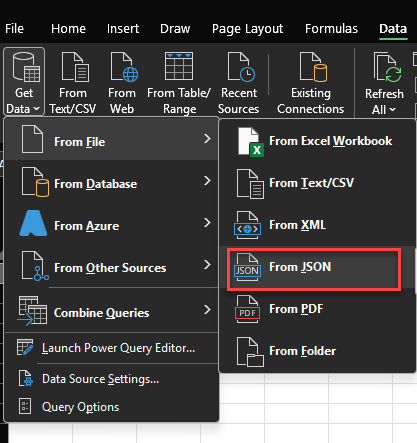
Microsoft Excel can open JSON files and turn them into tables. If you’d like to do that, go to Data > Get Data > From File > From JSON
Then choose your file, and turn “To Table” in Power Query
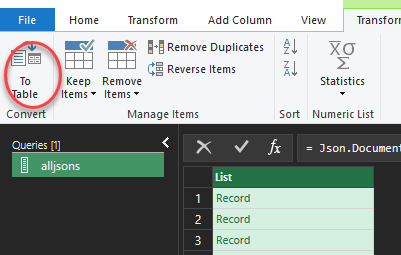
Your “List” column will get a little “left + right arrow” icon on it, click it and click OK to “expand” the underlying fields in each row

A bunch of new columns will appear. Go through the same process, expanding each column:
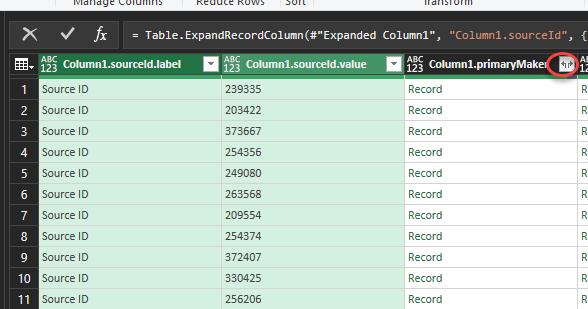
When done, click “Close & Load”. You will get the whole dataset as a familiar Excel sheet:

