
|
|
| This article assumes you're familiar with C++, Win32, COM |
|
|
|
Compared to some
of the topics covered in Microsoft Systems Journal, like DirectX® and Microsoft® Transaction Server, an article on setup might seem like pretty dry stuff. But the new Windows® installer offers your application some cool features that go well beyond anything available now. What if your application could automatically repair itself, restoring missing files from the installation media when they are referenced? How about adding your application's icon to the Start menu of thousands of machines in an enterprise—without having to actually install any of the application's files on a machine until a user selects that icon? What if you could advertise all the COM servers in your app to those machines without actually installing anything, and have the system automatically install the COM server when it is first instantiated by any client?
Sound pretty neat? Well, read on for all the details. There are a few key ideas behind the Windows installer. It will make application installation and ongoing management part of the basic Windows system services. This enables the system itself to track what is installed and better manage components that are shared by applications. The installer should persuade developers to think of setup not as a one-time process customers run, but as an integrated part of an application. It should support software installation on "locked down" machines, where ordinary users don't have privileges to do the things that many application installation programs need to do. The Windows installer is a key part of the Zero Administration Windows initiative. Finally, the installer should use the integrated Directory Service (expected to be introduced with Windows NT® 5.0) to introduce two new models of application deployment within large, distributed organizations: assignment and publishing. I'll describe all of these in more detail in this article. First, though, let's review the various setup approaches Windows-based applications use today.
Applications today use a variety of installation technologies. InstallShield, Seagate's WinInstall, or Great Lakes Software's Wise Installation System are commonly used tools for generating application installation packages. ActiveX® controls and other Web-page components use IExpress packages, which are basically self-extracting executables with simple file copy and registry capabilities. Large, complex applications like Microsoft Office and Corel PerfectOffice often use proprietary installation technology. Some simple components like drivers are able to use INF files, which are similar in capability to IExpress packages. Microsoft Windows currently provides only a very rudimentary way for administrators or users to know which applications they have installed on their machines and to manage these installed applications. The Add/Remove Programs Control Panel applet is driven by a standard set of registry entries that applications are supposed to write. This registration information provides a command line that Windows can invoke to uninstall the product. Higher-end products like Microsoft Systems Management Server can help in centrally managed environments, but are limited by the information and control that individual application setup scripts choose to provide, and do nothing to help home or small business users who are, in effect, their own system administrators.
The new Windows installer aims to improve this situation by providing a standard installation mechanism for Windows-based applications and components. Tools like WinInstall and InstallShield (as well as proprietary tools used by some application developers) will continue to exist, but will become setup authoring environments; the new Windows installer service is the "execution engine" for the setup scripts that the various authoring tools generate. The installer also exposes an API that applications can use to determine what installation choices users made, or even to install missing components. No more "Please exit and run setup to correct the problem" message boxes; the application simply runs setup for the user using the installer API. Because the installer is a basic system service and tracks information about what is installed, it can provide administrators in managed environments with a powerful set of tools for determining which software is installed—and on Windows NT 5.0, remotely managing software installation on user machines. |
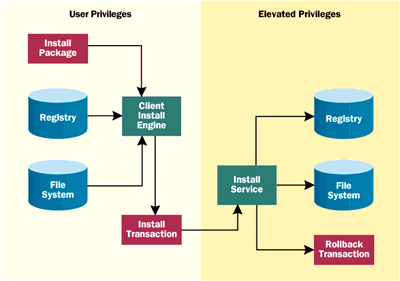 |
| Figure 1 Windows Installer Architecture |
|
The installer divides applications into a three-level hierarchy. Figure 2 contains the feature hierarchy for a sample application, EasyMail, used later in this article. At the top of the hierarchy is a product—something a user can install. A product is composed of multiple features. A feature is the smallest installable unit of functionality. Examples of features for EasyMail are MailReader, MailEditor, and Spell Checker. If you think of common setup user interfaces, a feature maps to a checkbox in the "custom" or "advanced" installation dialog; it is something a user can choose to not install. Features are collections of components. A component is the smallest unit of sharing among products and features. While features are specific to a product and identified by a name unique only within the product (such as MailReader), components are global across all products installed on a machine and are identified by a GUID. Although a COM component can be encapsulated as an installer component—and most COM components probably will be—don't confuse the terms. An installer component has nothing at all to do with COM. Components are the actual contents of your product. A single component may be composed of files, registry entries, COM registration information, Visual Basic® type libraries, shortcuts for the Windows Start menu, and so on (see Figure 2). An installer component is monolithic; it is either entirely installed on a machine or not installed at all. Because installer component identifiers are global, they are shared across products. For example, a number of products ship the Microsoft Visual Basic for Applications runtime. Defining this as an installer component has a couple of advantages. For starters, the installation logic for Visual Basic for Applications can be encapsulated within the component, so all products will install and uninstall it in exactly the same way. Once Visual Basic for Applications is installed on the machine, the installer knows it is there; installations of subsequent products that use this component simply increases the component's installation reference count. All the products share the same copies of the files. This is possible today, but requires some tricky coordination across products—including some non-Microsoft product licensees. The new installer makes this coordination unnecessary because Visual Basic for Applications is encapsulated as an installer component. Since the installer manages all the components, it can also do the right thing when a product is uninstalled: it will not remove components shared by products remaining on the machine. Again, this is possible today, but requires a fair amount of coordination between products. The installer makes it automatic and free for any product it installs. Remember that components are shared across features. As shown in Figure 2, Component1 is shared by the Reader and the Editor. Only one copy of that file will actually be installed, but it will be installed if either Feature1 or Feature2 is installed.
Features and components for a product are described in the product's installation database. This is a file with a .MSI extension that contains all the installation information for a particular product, including the user interface displayed during the initial user installation of the product. Setup authoring tools will typically be used to create the installation database file. The installation database is actually an OLE-structured storage file that contains a relational database of tables—see Figure 3 for a partial list of installation database tables. There are actually several dozen tables, but Figure 3 only contains descriptions of a few key tables. The actual product files may be stored in compressed CAB files contained in streams within the installation database file to facilitate Internet download of a single file to install a small product. For a larger product, product files may be external to the installation database in directories on a CD or a network server. The Windows installer is a registered server for files with a .MSI extension, so it is automatically invoked by the shell when a .MSI file is opened by a user. When invoked in this way, the installer reads product information from the installation database file and determines whether the product is already installed. If the product is not yet installed, it launches the product's installation sequence, which is described in the database. If the product is installed, different logic can be invoked, such as to add and remove features, or uninstall the product. The installer also exposes an OLE Automation interface to allow administrators or developers to write Visual Basic or VBScript code that controls product installation. Finally, the MsiExec command line tool can be used in batch scripts to install, uninstall, or change installation options for a product. You may wonder why the installer makes a distinction between COM server registration information (the Class table) and registry entries (the Registry table), or between files (the File table) and Start menu shortcuts (the Shortcut table). After all, registering a COM server just entails writing a bunch of registry entries to HKEY_CLASSES_ ROOT, and a shortcut is just a file. One reason is to support a key feature of Windows NT 5.0: feature advertisement. The installer enables any product feature to be in one of four installation states: locally installed, installed to run from the source, absent, or advertised. Figure 4 explains each of these installation states, along with the symbolic names used in installer API calls. INSTALLSTATE_ABSENT is used for features that are not installed. Features set to INSTALLSTATE_LOCAL or INSTALLSTATE_SOURCE are installed; the distinction is only between where the bits actually live. A feature has an installation affinity, which the setup author sets. For instance, a feature that is a large set of clip art images might have an affinity to run from source installation media to avoid taking up space on the local drive. Most commonly used features will be set to run locally so users don't have to insert installation media when running the application or have a network connection to the installation server. Users or administrators can override the installation affinity of any feature when installing it. In addition, your application can set the installation state of any feature using the APIs I'll describe later. For instance, you could provide a Prepare for Road Trip menu option that installs all necessary features locally on a laptop. INSTALLSTATE_ADVERTISED is the most interesting installation state. An advertised feature only has the appearance of being installed. COM servers, extension associations, MIME information, and so on are registered. An advertised feature doesn't have a path to the EXE or DLL that implements the server. Instead, the registry contains an MSI Descriptor—an opaque blob of data which references the installed product and feature that can provide the actual bits to implement that server. Start menu shortcuts exist for the feature (if the feature is the application executable), but they don't reference a file directly either—they also contain an MSI Descriptor. Only a thin veneer of the feature is actually present on the user's machine. Both the Windows Shell an |