
|
|
|
|
|
|
In a previous issue of MSJ, I presented a way to develop easily extensible applications using components called snap-ins ("Create Apps That Are Easily Extensible with Our Smart "Snap-Ins" Methodology,"; July 1997). Similar functionality exists in many commercial applications: Microsoft® Excel has add-ins, Netscape Navigator and Microsoft Internet Explorer support plug-ins, Visual InterDev™ hosts design-time controls, and Microsoft FrontPage™ 97 uses something called a WebBot®. While these components all provide a way to enhance and customize the host application, each is implemented differently. In fact, someone could probably write a hefty tome about how to develop each called The Big Book of Extension Components.
 I'd like to concentrate on something a little less complicated: the new extensibility features found in Microsoft Developer Studio™ 97—add-ins, macros, and improved custom wizards. Incidentally, since an article has already appeared in MSJ that explains how to write your own wizards ("Pay No Attention to the Man Behind the Curtain! Write Your Own C++ AppWizards," by Walter Oney, March 1997), I'll simply show you what improvements have been made; I'll assume you already know how they work. I'd like to concentrate on something a little less complicated: the new extensibility features found in Microsoft Developer Studio™ 97—add-ins, macros, and improved custom wizards. Incidentally, since an article has already appeared in MSJ that explains how to write your own wizards ("Pay No Attention to the Man Behind the Curtain! Write Your Own C++ AppWizards," by Walter Oney, March 1997), I'll simply show you what improvements have been made; I'll assume you already know how they work.
Developer Studio has always had a rudimentary level of customizability. In version 4.2, for example, you could record and play memorized keystrokes, change the editor settings, manipulate the toolbars, and adjust the font sizes and colors of various elements of the text display. Unfortunately, except for the ability to create your own wizards, the customizations you could make before the release of Developer Studio 97 were almost entirely cosmetic. Now, there are two powerful new ways to programmatically tailor Developer Studio to your needs: macros and add-ins. You can use either of these techniques to perform customized tasks using automation (formerly known as OLE automation). Here's how it works: Developer Studio exposes a number of automation objects—such as Application, Document, and Debugger—which you can manipulate by accessing each object's methods and properties. Furthermore, you can write handler functions that will be called whenever certain Developer Studio events occur, such as BuildFinish, NewDocument, or BreakpointHit.
What's so great about macros and add-ins in Developer Studio? You can automate routine tasks, significantly reducing the time required to perform rote operations. And automating tasks helps prevent errors. You can also extend the functionality of Developer Studio to meet the specific needs of your projects and applications. For example, using the built-in Documents object, you could write a macro to automate the creation of a new C++ source file:
|
 Sub CreateCPPFile
     Set NewDoc = Documents.Add("Text")
     NewDoc.Language = dsCPP
End Sub |
|
While I won't explain each method, property, and event for every object in the Developer Studio object model, I will present sample code that shows those objects in action.
While macros existed in Developer Studio 4.2, they were not very powerful, in my opinion. All they could do was record and play back a set of memorized keystrokes. While macros were certainly helpful under some circumstances, their usefulness was limited—a glorified copy-and-paste. Aside from the fact that you didn't have access to an object model, you had no way to program the macro to make decisions based on runtime conditions. For example, you couldn't tell the macro to search the active document for the occurrence of a particular class name:
|
 Sub ReplaceClassName()
     If ActiveDocument.Type = "Text" Then
         If
             ActiveDocument.Selection.FindText( _
             "CMyDialog", _
             dsMatchFromStart + dsMatchCase) Then
                 ActiveDocument.Selection = _
                 "CYourDialog"
         End If
     End If
End Sub |
| The combination of a new Developer Studio object model and support for Visual Basic® Scripting Edition means that macros are no longer limited to simple record-and-play keystroke memorization. They have now become full-fledged miniprograms—very powerful and useful. Fortunately, macros are still quite easy to create. Simply click File | New to bring up the New dialog box, then click the Files tab and choose Macro File from the list of file types. When you click OK, you'll see a dialog box like the one in Figure 1. If you wish, you may provide a brief text description that will appear in a comment at the top of the file created for you. The file can contain several macros, each nestled between the Sub and End Sub declarations that Visual Basic programmers have grown to love.
|
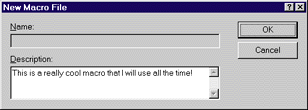 |
| Figure 1 New Macro File dialog |
|
Obviously, to write the macros themselves you'll need to have at least a cursory understanding of VBScript. If you don't, you'll find helpful documentation, tutorials, and samples on the Microsoft Developer Network CD or at the VBScript Web site (http://www.microsoft.com/vbscript). As an aside, you might also be interested in learning how to host VBScript in your own code so that your application supports automation scripts similar to Developer Studio macros. If so, check out the Extreme C++ column in the August 1997 issue of MSJ's sister publication, Microsoft Interactive Developer (available at better newsstands everywhere, or see http://www.microsoft.com/mind for subscription information).
Once you've created a macro file, you must register it. While you can save the file in any directory with whatever file extension you want, Developer Studio will only find your macros automatically if you place the file in the DevStudio\SharedIDE\ Macros directory and give
it a DSM extension. Otherwise, you'll have to specifically tell Developer Studio where it resides.
|
 |
| Figure 2 Registered add-ins and macros |
|
Either way, when you first save the file, the macros it contains are not yet available to run. To enable them, click Tools | Customize to display the Customize dialog box, then click the Add-ins and Macro Files tab
(see Figure 2) to display the list of registered add-ins
and macro files. Don't worry about add-ins for the time being—I'll discuss them in detail later on. If you give your macro file a DSM file extension and store it in the shared macro directory, it will automatically appear in the dialog box and you can enable it by clicking its check box. Otherwise, you'll first need to search for the file by clicking the Browse button. Incidentally, the list of registered macros and add-ins is stored in the registry beneath the HKEY_CURRENT_USER\Software\Microsoft\
DevStudio\5.0 key (see Figure 3). I mention this because, if you have macros and add-ins stored in various and sundry directories, it's nice to know where they reside in case you ever want to uninstall them.
|
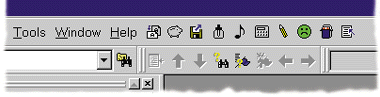 |
| Figure 4 Macro buttons |
|
After your macro is registered, you are ready to run it. The obvious way is to click Tools | Macro to display the Macro dialog box and then select the desired macro from the list. That method is not very efficient—it's a real pain to have to search the entire macro list each time you want to run one. A much better solution is to |
 |
| Figure 5 Drag macros from the Customize dialog |
|
assign a macro to a keystroke or a toolbar button. You can assign buttons to your favorite macros and position them at the right of the Developer Studio menu bar (see Figure 4). To do that, simply drag the macros from the Customize dialog box (see Figure 5) to the position on the toolbar or menu bar where you want them to appear. When you drop the macro on a tool-bar, you are asked to choose the icon used to represent it from a built-in set of icons provided by Developer Studio, as shown in Figure 6. |
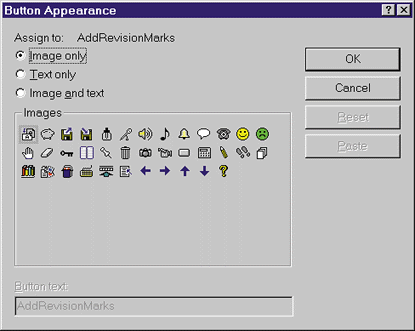 |
| Figure 6 Select a button icon |
|
Even though there are nearly 40 stock icons to choose from, sometimes you'll want to use your own icon. While not as easy as I'd like, there is a way to do it. First, drag your macro to the toolbar and select one of the stock icons. Next, using the resource editor or any other application that lets you design bitmaps, create a 16 X 16 image and copy it to the clipboard. If necessary, switch back to Developer Studio and click Tools | Customize to display the Customize dialog box. Finally, right-click the toolbar button whose image you want to replace and click Paste Button Image from the context menu. Developer Studio will replace the stock image on the toolbar with the one you've provided.
When I'm debugging an MFC application, I often find myself stepping into the MFC source code. Sometimes I do it because I want to see what is happening behind the scene, but most often it is simply a side effect of inadvertently debugging into the constructor of a temporary MFC object. For example, suppose I have a function that takes a CString as an argument. If somewhere in my code I pass that function an LPCSTR instead of a CString, the compiler must first create a temporary CString before entering the function. Thus, when debugging a line of code that calls my function, I end up stepping through the code for the CString constructor. After a lengthy debug session, it's not unusual to end up with 20 or more open source files! Since I like to avoid clutter when coding, I usually close all of the source windows when I'm finished debugging. What I really want to do is close the superfluous files, but leave open the file I'm working with. As it turns out, one of the sample macros that ship with Developer Studio does exactly that. That macro, aptly named CloseExceptActive, closes every open file except the active one. Thus, with a single click of the mouse I can clear up source file clutter. If only there were a similar macro I could use to clean my office! The code for the CloseExceptActive macro, along with the code for two more of my favorite factory-ready macros—CommentOut and OneTimeInclude—is shown in Figure 7. These three macros are part of the SAMPLE.DSM macro file that ships with Developer Studio. As you can see, the code for the CloseExceptActive macro is almost unbelievably simple. It merely uses a VBScript Do...While loop in conjunction with the Developer Studio Windows object to iterate through the list of open windows, closing all but the one on top. Admittedly, while this macro comes in handy, it isn't exactly earth-shattering. But in earlier versions of Developer Studio, macros could not perform even that simple task because there was no way to repeat an operation until a certain condition was met. As simple as the CloseExceptActive macro is, without the combination of VBScript and the Developer Studio object model, it wouldn't be possible. When you're trying to isolate a bug in your code, another macro you'll find handy is CommentOut (also shown in Figure 7). It lets you comment out the currently selected text using a single keystroke. While this macro might seem to be a no-brainer at first glance, consider that Developer Studio is more than a workspace for C++ source files. For many people, it is also the editor of choice for DEF files, HTML files, and (of course!) VBScript macro files. Since C-style comments are not compatible with any of those languages, the CommentOut macro must be intelligent enough to handle those files correctly. In other words, the tokens used to comment out a block of text depend on the file type of the active document. Furthermore, if the active document is not a text file—perhaps it's a bitmap or a dialog box—the macro must simply display a warning message or do nothing at all. Because of these varying conditions, the CommentOut macro makes liberal use of the VBScript If…Then and ElseIf…Then clauses and the ActiveDocument.Selection object. The last sample macro shown in Figure 7 is OneTimeInclude. It lets you make sure that a C++ header file is included only once. Of course, this has traditionally been accomplished by placing the following #define around the text in the header file: |
#ifdef __MYHEADER_H__ #define __MYHEADER_H__ • • • #endif |
|
If you're not planning to port your code to another platform (or to a previous version of the Visual C++® compiler), it's much easier to use the #pragma once directive. As a result, the OneTimeInclude macro lets you decide which approach to take, the traditional #ifdef method or the more efficient (but Visual C++-specific) #pragma method. If you choose the latter, the macro simply inserts a single line at the top of the header file. If you use the #ifdef method, the OneTimeInclude macro parses the file name to create a default #define token, such as __MYHEADER_H__, and then gives you the option to modify that token (see Figure 8). The OneTimeInclude macro shows how to use several of the VBScript string manipulation functions (UCase, Instr, Mid, Len, LCase, Left, and Right) and user-interface subroutines (MsgBox and InputBox), as well as how to manipulate the ActiveDocument.Selection object. |
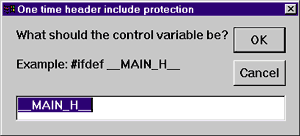 |
| Figure 8 Modifying a #define token |
|
While VBScript macros are an effective way to enhance the performance and functionality of Developer Studio, they do have limitations. There's no way to display
your own dialog box using VBScript. While you can display notification messages and collect simple input using the MsgBox and InputBox subroutines, neither of those commands is flexible enough to meet every need. Furthermore, VBScript does not have access to the Win32® API, nor does it allow you to create your own objects—you can only manipulate the objects exposed by Developer Studio.
Suppose you wanted to seamlessly integrate a set of sophisticated features with Developer Studio, similar to the integration provided by development tools like Microsoft Visual SourceSafe™ or NuMega BoundsChecker. With VBScript it's just not possible. Fortunately, there's an alternative: Developer Studio 97 supports a specialized type of ActiveX™ component called add-ins that allows you to add custom commands to the toolbar and handle Developer Studio events similar to the way you use macros. While it is generally easier to develop a VBScript macro than it is to develop an add-in, add-ins give you a much greater level of versatility. You can use any language you'd like when creating an add-in, as long as it supports COM. I'll discuss developing add-ins using Visual C++. If you consider yourself more of a Visual Basic person, you'll find sample add-ins created using Visual Basic outlined in the MSDN Library topic entitled "Using the Sample Add-ins." At any rate, since add-ins are in-process COM server DLLs rather than simple scripts, you have access to the resources of the entire operating system, as well as the objects exposed by Developer Studio. |
 |
| Figure 9 DevStudio Add-in Wizard |
|
The easiest way to create an add-in is to use the DevStudio Add-in Wizard (see Figure 9). The wizard generates all of the necessary code to add one command to the toolbar and, optionally, to handle Developer Studio events. Using the wizard code as a starting point, I've developed two sample add-ins that I think you'll find useful, not only as examples from which you can borrow code, but as bona-fide extensions to Developer Studio. Before I get to the specifics, let's look at the inner workings of the DevStudio Add-in Wizard. The wizard code is comprised of three classes—CCommands, CDSAddIn, and CProjectNameApp (where ProjectName is the name of the project)—each of which is described in Figure 10. In addition, the add-in implements two key interfaces, IDSAddIn and ICommands. IDSAddIn is a custom interface that allows Developer Studio to communicate with the add-in; the ICommands interface—inherited from IDispatch—is the means by which the add-in exposes one or more commands. Incidentally, the wizard code uses both Active Template Library (ATL) and MFC. ATL is used to implement the COM classes and interfaces efficiently, while MFC gives you the power to create a sophisticated add-in user interface.
Since the DevStudio Add-in Wizard provides fully functional implementations of the IDSAddIn and ICommands interfaces, it is possible to develop add-ins without knowing how they work—you can simply change the command-handler code in the CCommands class. Since it's helpful to understand what happens when an add-in is loaded and unloaded, I'll give you a quick overview. So that you can follow along at home, I've included the wizard-generated code for the CDSAddIn and CCommands classes in Figures 11 and 12. To keep things simple, when I ran the DevStudio Add-in Wizard, I chose not to handle Developer Studio events—I'll talk about those a bit later. As shown in Figure 11, the CDSAddIn class implements the two IDSAddIn interface methods required to integrate with Developer Studio: OnConnection and OnDisconnection. These functions are called when the add-in is being loaded and unloaded. Their prototypes are shown below: |
 VARIANT_BOOL OnConnection(IApplication* pApp,
                           VARIANT_BOOL bFirstTime,
                           long dwCookie, VARIANT_BOOL*
                           pbResult);
 STDMETHODIMP OnDisconnection(VARIANT_BOOL bLastTime);
|
|
As you can see, Developer Studio exposes its object model to the add-in by passing a pointer to the IApplication interface in the call to OnConnection. If you hadn't guessed, IApplication is the dual interface that represents the Application object, the topmost object in the hierarchy. The add-in uses that interface to get at other objects, such as ActiveDocument, Application, and Debugger. Here's what happens when Developer Studio calls the OnConnection function.
As I mentioned before, if I had chosen to handle Developer Studio events such as BeforeBuildStart or BreakpointHit, the code for the CCommand object would have been significantly more complex. As it is now, there's really not much to it (see Figure 12). When the user clicks the toolbar button for a particular add-in command, Developer Studio calls the associated CCommand function. Once you've created an add-in, you need to register it with Developer Studio, a process similar to the way you register a macro. From the Customize dialog box (refer to Figure 5), use the browse button to tell Developer Studio where the add-in resides.
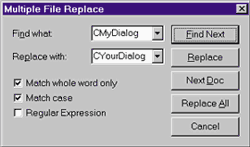
Perhaps it shows a lack of forethought, but when I'm writing code I often want to change the name of a class midway through its development cycle. For example, I might name a class CSnickerView when I first create it using the ClassWizard, but decide sometime later on that it would be more appropriately named something else, like CDoodleView. Unfortunately, when this happens, the changes required to rename the class are rarely restricted to a single file. More often than not, I end up having to search-and-replace across several source modules. What makes this difficult is that the Developer Studio Replace dialog only lets me replace text in the active document. It would be nice if there were an enhanced version of that dialog that would let me quickly change the class name in all of the open documents, not just the active one. |
 |
| Figure 13 Multiple File Replace |
|
I created a sample add-in to provide that functionality. When you click the toolbar button for the add-in, it displays a dialog box similar to the built-in Replace dialog, as shown in Figure 13. Since you can download the code and examine it at your leisure (see page 5 for download instructions), I won't give you a line-by-line explanation. I'll simply mention that there are two key Developer Studio objects that make the Multiple File Replace add-in work: Documents and TextSelection. As you might expect, the Documents object allows you to iterate through the list of open documents. The TextSelection object has two methods, FindText and ReplaceText, which allow you to find and replace specific strings.
When I'm debugging, I often want to see what happens to the value of a variable as the execution of my program progresses. While the Developer Studio debugger is great, I sometimes find that setting a breakpoint is tedious, especially if I'm working on a section of code that might get executed several hundred times. I end up reverting back to the mindset of my days as a college student (OK, OK, so it hasn't been that long ago) when my idea of robust debugging was to liberally sprinkle printf statements throughout my code. Don't laugh, you did it too. Of course, now that I'm a professional Windows developer I use TRACE, but the goal is the same—I just want to see what's happening to the variable without interrupting execution. The problem with printf or TRACE is that I have to recompile my program once when I add those statements, and again when I remove them. It's a big pain. It would be nice if there were a way to dump the contents of a variable at specific intervals without having to muck with the code. Well, surprise, surprise! I created an add-in that lets you set what I've named a "tracepoint" instead of a breakpoint. In other words, you can dump the contents of a variable to the output window at specific points throughout your code without having to interrupt program flow or change the code itself. |
 |
| Figure 14 Tracepoint |
|
To make it work, you must first set a breakpoint at the desired location and then bring up the Tracepoint dialog box (see Figure 14) by clicking the toolbar button for that add-in. The dialog box lets you convert one or more breakpoints into tracepoints and specify the regular expressions you want to send to the output window (instead of stopping) whenever program execution reaches those points. As you'd expect, I created the Tracepoint add-in using the DevStudio Add-in Wizard. Unlike the Multiple File Replace add-in described above, I had to handle Developer Studio events. The Tracepoint add-in responds to the BreakpointHit event, as shown in Figure 15. I think you'll find the code for the Tracepoint add-in straightforward. In the code for the dialog box—written using run-of-the-mill MFC—I keep track of each tracepoint and its associated array of output expressions. During program execution, when a breakpoint is reached, Developer Studio calls the BreakpointHit event handler and passes it a pointer to a Breakpoint object—again, part of the totally cool Developer Studio object model. At that point, my code simply looks up the breakpoint in the list of enabled tracepoints. If there's a match, the code does two things. First, it calls IApplication::PrintToOutputWindow for each expression, which displays the results in the Macros tab of the output window. (Depending on your Developer Studio configuration, the Macros tab might not be visible by default—you may have to click on the right arrow at the bottom of the output window a few times before it comes into view.) Second, the code calls IDebugger::Go, which tells the debugger not to stop at the breakpoint. While the Tracepoint code works like a charm, there is a minor annoyance that I need to point out. By the time Developer Studio calls the BreakpointHit event handler, it has become the active window. Thus, even though program execution doesn't stop when it reaches a tracepoint, the focus momentarily switches to Developer Studio. If the tracepoint is hit multiple times, the result is a bothersome flicker between Developer Studio and the topmost window of the application being debugged. I've decided that it's a small price to pay. Of course, if you find a workaround to the problem, I'd love to hear about it!
As I mentioned at the beginning, the latest version of Developer Studio has improved the functionality of custom wizards, giving you more power and flexibility than ever before. If you're not familiar with how wizards work, you should consult the online documentation and read the excellent article that appeared in MSJ several months ago. In a nutshell, a wizard is an MFC dynamic-link library (with an AWX file extension) that allows you to extend the functionality of Developer Studio by providing a starting point for new projects. For example, the built-in MFC AppWizard walks you through the steps of creating an MFC document/view application. The ATL COM AppWizard helps you create one or more COM objects using ATL. As it turns out, there is also a built-in wizard (called the Custom AppWizard) that allows you to create your own wizards! The key difference between a typical MFC-based DLL and a custom wizard DLL is that, rather than defining a CWinApp-derived class like you normally do, you define a CCustomAppWiz-derived class instead. In the project's DllMain, you register that class as a Developer Studio extension DLL by calling SetCustomAppWizClass. Unfortunately, there were two significant problems with the custom wizards you could create with earlier editions of Developer Studio. First, wizards created with Visual C++ 4.2 did not work correctly under some circumstances due to runtime conflicts between Developer Studio and the MFC DLLs. As a result, to ensure correct functionality of your wizard under Visual C++ 4.2, you had to create it using Visual C++ 4.1! Second, there was no way to control the build settings for the new project created by your wizard DLL—you just got the vanilla MAK file created by CCustomAppWiz. For simple wizards it wasn't a big deal, but if you wanted to change the compiler options, add a library module to the linker settings, or add a custom build step, you were simply out of luck! For example, suppose you wanted to create a customized ActiveX ControlWizard, slightly different than the built-in ActiveX ControlWizard that ships with Developer Studio. If you created your custom wizard using Visual C++ 4.2, the project file generated for the control had two problems: the output file name for the control would be given a DLL extension instead of OCX, and the project lacked a custom build step to register the control. Since you had no control over those settings, you would have had to instruct users of your wizard to make those changes by hand after the project was created. Fortunately, these limitations have been overcome with the latest version of Developer Studio. First, wizards created using DevStudio 97 work just fine under it, just as you'd expect. Unfortunately, they are not backward-compatible. They do not work with previous versions of the compiler, such as Visual C++ 4.2—but that's probably not a big deal. More impressive is the fact that the CCustomAppWiz class now includes a CustomizeProject virtual method that allows you to alter the project settings. Immediately after generating the source files and creating the project, the AppWizard engine calls the CustomizeProject function and passes it a pointer to the BuildProject automation object (via the IBuildProject interface). Thus, by overriding that function, you can alter the project settings to your heart's content.
As it turns out, you can't get at the compile and link options directly using the BuildProject object. Instead, that object simply gives you access to the Configurations object, which exposes the list of the project's configurations. Using VBScript, it is quite easy to manipulate those configurations. In fact, it only took me a few seconds to write a macro that displays the name of each configuration in the active project, as shown below. To refresh your memory, a configuration is a collection of project settings, such as "Win32 Debug" or "Win32 Release MinSize." |
 Sub GetBuildProjectInfo()
     Set activeProject = Application.ActiveProject
     If activeProject.type = "Build" Then
         For Each configuration in
                 activeProject.Configurations
             MsgBox configuration.Name
         Next
     End If
 End Sub
|
|
Unfortunately, manipulating the Developer Studio objects in C++ is a bit more tricky than it is with VBScript. Once you get a pointer to each Configuration object, you can make changes to its settings by calling its AddToolSettings, RemoveToolSettings, and AddCustomBuildStep functions. The AddToolSettings and RemoveToolsSettings functions let you alter the compiler and linker settings for a given configuration. For example, you might want to add a preprocessor definition (such as _MBCS or _DEBUG) or
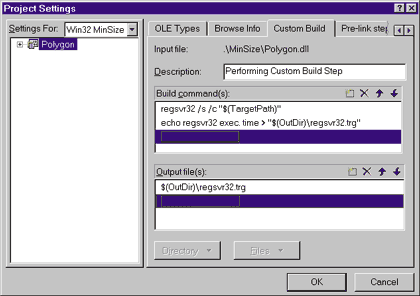
disable Runtime Type Information (RTTI). The AddCustomBuildStep function allows you to designate one or more shell commands to execute after the specified configuration is built. |
 |
| Figure 16 Custom build step |
|
Incidentally, the custom build step applies to the entire configuration, not just to a single file. The most commonly used custom build step is the one used to register a COM object. For example, when you create a project using the ATL COM AppWizard or the MFC ActiveX ControlWizard, those wizards add the custom steps shown in Figure 16.
Before I show you an example of the AddToolSettings, RemoveToolSettings, and AddCustomBuildStep functions in action, let's take a quick look at what you might call the "anatomy and evolution" of a Developer Studio 97 project file. As you may recall, previous versions of the Developer Studio stored the project settings in two files: an MDP file containing user-specific workspace settings, and a MAK file containing just about everything else—the build configurations, the list of files included in the project, the file dependencies, and the compiler and linker settings. In principle, a single MAK file could be shared among developers working on the same project (using source code control software). Furthermore, the MAK file could be used for both interactive builds within Developer Studio and command-line builds using NMAKE. This was an elegant and admirable approach, but in practice the implementation of the MAK file had a few glitches when shared among several developers. For details, refer to the Knowledge Base articles entitled "Using Relative Paths in Visual C++ 32-bit Edition MAK Files" and "Absolute Pathnames for Source Files Placed in Makefile." The solution to the MAK file limitations was to create two new file types that represent workspaces and projects—DSW (Developer Studio Workspace) files and DSP (Developer Studio Project) files . The new approach not only solves the "shared makefile" bug, but also gives Developer Studio the ability to host several different project types (Visual InterDev, Visual C++, and Visual J++™) using a single, consistent file structure. Of course, if you need to build your projects using NMAKE, you can still export a MAK file, but it is not guaranteed to be portable across machines. The compiler and linker settings that used to be stored in a MAK file are now stored in the DSP file. For example, Figure 17 shows a sampling of the information found in a project file for a typical ActiveX control. Admittedly, if you haven't spent much time browsing project files, little of what you see in the figure will make sense, especially at first glance. If you look closely, you should be able to pick out a few things. The ADD BASE CPP and ADD CPP lines contain the settings specified in the C/C++ tab of the Project Settings dialog box. The ADD BASE LINK32 and ADD LINK32 lines represent the settings found in the Link tab of that same dialog box. Finally, notice that the DSP file contains a Custom Build step that registers the ActiveX control.
As I mentioned earlier, the default project file generated by a custom wizard might not contain the settings you want. To show you how to change the project settings from within your wizard code, I've included the source for a custom wizard—the MFC Design-Time ActiveX ControlWizard. Incidentally, I created this code for an article that appeared several months ago in Microsoft Interactive Developer ("Design-Time ActiveX Controls Made Easy with Visual C++ 5.0," June 1997). Of course, an explanation of design-time ActiveX controls is beyond the scope of this article, but a look at the wizard's CustomizeProject function (see Figure 18) might give you some ideas that will help you with your own custom wizards.
Well, there you have it! I've discussed three ways to extend Developer Studio 97: macros, add-ins, and custom wizards. These features, along with the new object model, make it possible to customize and enhance Developer Studio like never before. While I've touched on several different topics, I've only described a few of the automation objects made available by Developer Studio—you'll have to discover the rest of them on your own. 
|
|
|
|
Terms of Use. |