
When I first began examining WPF, I immediately thought of the System.Windows.Shapes namespace as containing the "baby" graphics classes. These classes seemed suitable for simple displays of lines and rectangles, but I thought grownup WPF programs would probably want to get down-and-dirty by overriding the OnRender method and calling methods in the DrawingContext class.
The DrawGeometry method seemed particularly enticing: in WPF a Geometry object is a combination of connected and unconnected straight lines, arcs, and Bézier curves that in traditional graphics programming is known as a "path." The three arguments to DrawGeometry include a Geometry object, a Pen to stroke the lines and curves of the Geometry, and a Brush to fill enclosed interiors.
In time, I realized that my first impression of WPF vector graphics was wrong. Most WPF programs have no need to override the OnRender method and make calls to methods in the DrawingContext class. Overriding OnRender is a good training exercise, but usually not required in most mainstream applications.
With this realization, the System.Windows.Shapes namespace became, at least in my mind, the namespace of choice for rendering two-dimensional vector graphics in WPF. The System.Windows.Shapes namespace consists of these classes: Shape (which is abstract) plus Line, Polyline, Polygon, Path, Rectangle, and Ellipse (all of which are sealed).
The Shape class itself derives from FrameworkElement. The most important Shape derivative is undoubtedly Path; this class has the same degree of power as the DrawGeometry method of DrawingContext but causes much less hassle. When you use the Path class in XAML, you can even define the Geometry object with a string of coded drawing commands.
This is not to say that the Shapes classes constitute an all-purpose vector graphics solution for every application. Each instance of one of these classes is a full-fledged WPF element, and that might be more overhead than you need. Moreover, each of these classes has only one stroke pen and one fill brush, and that might be less color than you require.
For rendering complex vector images containing multiple colors, you have a couple of options. You could create multiple Path objects, of course, but that might be overkill if you want to treat the complex image as its own entity. A better solution in that case involves the DrawingGroup class, which can have multiple GeometryDrawing objects, each of which consists of a Geometry, a stroke pen, and a fill brush. This DrawingGroup object is perhaps the closest thing in WPF to a traditional graphics metafile. The DrawingGroup object can be the basis for a brush (via DrawingBrush) or you can turn it into a DrawingImage for display by the Image class.
When you need only a moderate number of graphics primitives—and particularly when these objects need to receive mouse, keyboard, or stylus input, or be subjected to their own transforms—the classes in the Shapes namespace are ideal.
Now I'm going to discuss deriving from Shape, which is the only unsealed class in the Shapes namespace. You can derive from Shape to implement your own custom vector graphics primitives. Deriving from Shape is the easiest way to ensure that these custom primitives exploit the protocols of the WPF layout system.
I haven't seen the source code for Shape, but I know a few things about the class from general principles. Because Shape derives from FrameworkElement, it overrides the MeasureOverride, ArrangeOverride, and OnRender methods. I suspect that the OnRender override is quite simple and consists solely of a call to the DrawGeometry method of DrawingContext, passing to it the Brush, Pen, and Geometry objects.
While the Brush argument to the DrawGeometry call undoubtedly comes from the Shape's Fill property, Shape does not define a property of type Pen. Instead, Shape defines nine separate properties that it constructs internally into a Pen object. These nine properties all begin with the word Stroke, and actually help make the use of Shape derivatives fairly easy, both in XAML and code.
For example, if you were defining a GeometryDrawing object containing an EllipseGeometry in XAML, it might look like this:
<GeometryDrawing Brush="Red">
    <GeometryDrawing.Geometry>
        <EllipseGeometry ... />
    </GeometryDrawing.Geometry>
    <GeometryDrawing.Pen>
        <Pen Brush="Blue" Thickness="3" />
    </GeometryDrawing.Pen>
</GeometryDrawing>
Notice that the Pen object needs to be defined within a property element, and even with this markup you still haven't specified how the GeometryDrawing will actually be rendered. Equivalent XAML for the Ellipse class, however, looks like this:
<Ellipse Fill="Red" Stroke="Blue" StrokeThickness="3" ... />
When the Shape class calls the DrawGeometry method of DrawingContext, it also requires a Geometry object. This Geometry object is the focus of much of the rest of this column.
One of the most confusing aspects of the Shape class involves its ability to encapsulate two different drawing paradigms.
The first paradigm is more traditional. Let's call it the "coordinate" paradigm. When using the Line, Polyline, Polygon, and Path classes you specify actual coordinate points that define the straight lines and curves that make up the figure, perhaps like this:
Line line = new Line();
line.X1 = 100;
line.Y1 = 50;
line.X2 = 200;
line.Y2 = 150;
line.Stroke = Brushes.Blue;
line.StrokeThickness = 12;
The result is shown in Figure 1. While a Canvas panel is probably the most common parent of a Line element, you can actually put a Line anywhere you'd put another control or element. The program in Figure 1 sets the Line to the Content property of a Window.
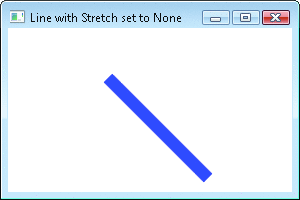
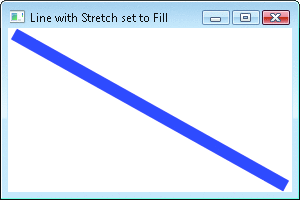
The Line, Polyline, Polygon, and Path classes inherit a Stretch property from Shape, which then defines the default value as Stretch.None. If you set the property to Stretch.Fill, the Line fills its parent, as shown in Figure 2.
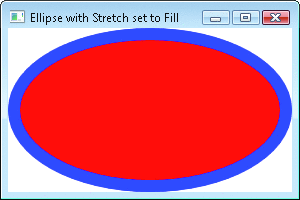
Shape also implements a different drawing paradigm that's perhaps more of a WPF style of rendering. We can call this the "autosize" paradigm. This paradigm is realized in the Rectangle and Ellipse classes. Figure 3 shows an Ellipse element set to the Content property of a Window. The Ellipse element is created like this:
   Ellipse elips = new Ellipse();
   elips.Fill = Brushes.Red;
   elips.Stroke = Brushes.Blue;
   elips.StrokeThickness = 12;
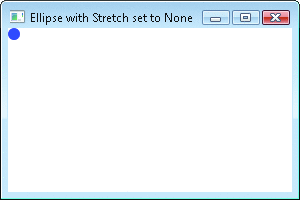
The Ellipse element is not given any coordinate or size information; the figure fills the interior of its parent by default. Rectangle and Ellipse set the default value of the Stretch property to Stretch.Fill. If you set the property to Stretch.None, the ellipse collapses into a tiny ball with only its border visible, as shown in Figure 4.
You can also create this effect by setting the HorizontalAlignment and VerticalAlignment properties of Rectangle or Ellipse to something other than Stretch. (Included with the downloadable code for this column is a program named StretchExplore that lets you see different stretch options for Line and Ellipse as well as the two Shape derivatives that I'll develop here.)
If you need a Rectangle or Ellipse element to be a particular size, you can use the Width and Height properties defined by FrameworkElement, or you can set MinWidth, MaxWidth, MinHeight, and MaxHeight to specify a range of values. You must set these properties when rendering Rectangle or Ellipse on a Canvas panel.
When deriving a custom graphics primitive from Shape, it is easier to implement the "coordinate" paradigm rather than the "autosize" paradigm.
Shape defines 14 properties inherited by its derivatives, and I've already mentioned 11 of them: the 9 pen-related properties that begin with the word Stroke, the Fill property, and Stretch. The other 3 properties are defined with get accessors only: DefiningGeometry (protected and abstract); GeometryTransform (public and virtual); and RenderedGeometry (public and virtual).
When deriving from Shape to implement a graphics primitive with the "coordinate" paradigm, the only property you need to override is DefiningGeometry. As the name implies, you implement DefiningGeometry by returning an object of type Geometry that defines your graphics primitive. It's very likely that your Shape derivative class will include additional properties that define the graphic. In most cases, you should back these properties with dependency properties so they can be the target of data bindings and animations.
Because DefiningGeometry can be called at any time, and particularly whenever any property that affects the primitive changes, it's important to implement DefiningGeometry without routinely allocating memory from the heap. If every call to DefiningGeometry results in a heap allocation, eventually the Microsoft® .NET Framework garbage collector will need to take action. You should try to purge your DefiningGeometry code of any class instantiations, and you should also be aware of implicit heap allocations associated with some methods. Next I'll show you several techniques for avoiding heap allocations in your Shape derivatives.
As a first simple example, suppose you'd prefer an alternative to the Line primitive that lets you set the starting and ending coordinate points with Point objects rather than pairs of double objects. The PointLine class that derives from Shape is shown in Figure 5.
Notice that StartPoint and EndPoint are both defined with dependency properties. I used the same names as the corresponding properties in the LineGeometry class so I could simply add the PointLine class as a new owner to these properties. Both properties have the AffectsMeasure flag set because both properties affect the size of the element. When either property changes, a new layout pass occurs that culminates in a call to OnRender implemented in Shape. If you define a property that affects only the appearance of the shape and not its size, you can use the AffectsRender flag instead to avoid initiating a layout pass.
The get accessor of the DefiningGeometry property returns a LineGeometry object based on the StartPoint and EndPoint properties. You should notice that the class reuses a single LineGeometry object that is defined as a field rather than creating a new LineGeometry object during each DefiningGeometry call. This is a crucial technique when deriving from Shape in order to avoid cluttering the heap with new object instances.
Figure 6 shows another relatively straightforward Shape derivative. The CenteredEllipse class lets you draw an ellipse by specifying its center, its horizontal and vertical radii, and a rotation angle. CenteredEllipse adds itself as an owner to the Center, RadiusX, and RadiusY properties defined by EllipseGeometry, and also appropriates the RotationAngle property from ArcSegment. Notice that CenteredEllipse creates a RotationTransform stored as a field and reuses it to associate a transform with the EllipseGeometry object.
CenteredEllipse illustrates an alternative structure that is appropriate if defining the Geometry requires significant processing time. Rather than setting the AffectsMeasure flag in the dependency properties, the class defines property-changed handlers that set the properties of the two private fields and then call InvalidateMeasure to initiate the new layout pass.
You'll discover that these PointLine and CenteredEllipse classes behave the same as the regular Line class. If you set the Stretch property to something other than Stretch.None, the Shape class calculates a transform necessary to resize the geometry and shift it so it occupies the interior of its parent. Obviously this transform is based on the size of the Geometry itself (which is available through the Bounds property), but it also takes into account the StrokeThickness property so that at least most of the object stays within the parent's rectangle.
These calculations occur behind the scenes within the Shape class itself. The transform that Shape calculates is available through the public GeometryTransform property. (The default value is the static property Transform.Identity.) Shape also calculates the RenderedGeometry property as the DefiningGeometry property transformed by the GeometryTransform property. It is this RenderedGeometry property that the OnRender method in Shape uses to draw the graphic.
It's important for Shape to apply this transform to the geometry rather than to the figure itself. If the transform were applied to the figure, it would also affect the width of the pen that is used to stroke the lines.
The good news, of course, is that you don't have to worry about this transform calculation. All you need to supply is the DefiningGeometry.
The source code for this column consists of a single Visual Studio solution named DerivingFromShape. The Shape derivatives themselves are in a DLL project named Petzold.Shapes. This DLL also includes Shape derivatives that implement line and polyline primitives tipped with arrows that I wrote for an April 2007 blog entry (charlespetzold.com/blog/2007/04/191200.html).
Let's leap into something a bit more challenging. Suppose you want a class that is essentially a souped-up version of Path. The Path class defines a single property of its own named Data of type Geometry. It's very likely that Path returns this same Geometry object from its DefiningGeometry property, qualifying Path as surely the simplest of the Shape derivatives.
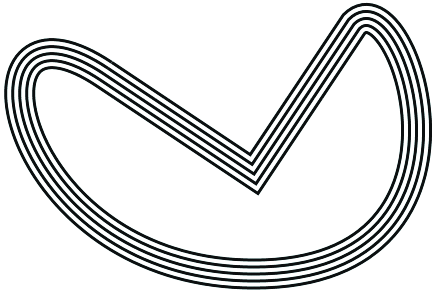
Our new class will itself define a Data property by adding an owner to Path's Data property. But rather than just rendering the Geometry object, our new class will render the Geometry in parallel, as shown in Figure 7. The new ParallelPath class, as it is called, has a property named Number for the number of lines (5 in Figure 7) and Gap for the gap between the lines. In Figure 7, StrokeThickness is set to 3 and Gap to 4.
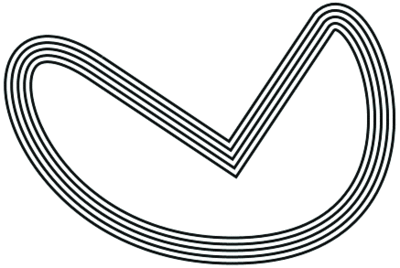
I'll warn you right now that the algorithm used by ParallelPath breaks down under some conditions and causes extraneous lines to shoot off sometimes, but it works fairly well if you keep the number of parallel paths within reason and maintain smoothness between the various path segments. ParallelPath might also give unexpected (although completely deterministic) results when you fill it with a brush.
The concept of generating parallel lines is fairly simple when only straight lines are involved, but the ParallelPath class also works for Bézier curves and arcs. Just as with Path, you can set the Data property of ParallelPath to any object of type Geometry, which is an abstract class from which seven sealed classes derive: CombinedGeometry, EllipseGeometry, GeometryGroup, LineGeometry, PathGeometry, RectangleGeometry, and StreamGeometry.
The image in Figure 7 is generated by the following code:
<ps:ParallelPath Stroke="Black" StrokeThickness="3"
  Number="5" Gap="4" Tolerance="10">
  <ps:ParallelPath.Data>
    <PathGeometry>
      <PathFigure StartPoint="200 100">
        <PolyLineSegment Points="350 200, 450 50" />
        <PolyBezierSegment
          Points="500 0, 600 300, 350 300,
                  100 300, 50 0, 200 100" />
      </PathFigure>
    </PathGeometry>
  </ps:ParallelPath.Data>
</ps:ParallelPath>
The "ps" XML namespace is associated with the Petzold.Shapes CLR namespace. You can also set the Data property to a string in the path mini-language; in that case, however, the individual coordinates cannot be the targets of data bindings or animations.
The most versatile of the Geometry derivatives is PathGeometry. A PathGeometry object is a collection of PathFigure objects, each of which is a collection of connected straight lines and curves stored as a collection of PathSegment objects. PathSegment is an abstract class from which seven classes derive for rendering straight lines, arcs, and Bézier curves. Any coordinate point in any of these segments can be the target of a data binding or animation.
Regardless what type of Geometry object you set to the Data property, ParallelPath generates a PathGeometry object describing the parallel straight lines and curves. The algorithm does not, however, attempt to find a Bézier curve that is parallel to another Bézier curve. The algorithm is instead based entirely on polylines: The input is one or more polylines and the output consists of multiple polylines for each input polyline. For this reason, ParallelPath needs to "flatten" the input geometry—which means converting the entire geometry (including arcs and Bézier curves) into a polyline approximation.
If ParallelPath is not giving you the results you anticipate—if, for example, there are some extraneous lines that shoot off at the endpoints of some segments—you can set the Tolerance property to a value greater than 1; perhaps to 10 as the ParallelPathDemo program does. This Tolerance value is (roughly) the number of device-independent units in each polyline of the flattened geometry.
Fortunately, the Geometry class includes a method for flattening geometries. The method is named GetFlattenedPathGeometry and returns a PathGeometry object consisting entirely of PathFigure objects with PolyLineSegment objects. (The PathFigure class itself defines a GetFlattenedPathFigure method that returns another PathFigure.)
Unfortunately, the GetFlattenedPathGeometry method needs to allocate memory from the managed heap to create the PathGeometry object, as well as to create the PathFigure and PolyLineSegment children that make up the geometry. These memory allocations are potentially a problem. Suppose the Data property of ParallelPath is set to a PathGeometry object, and one of the coordinate points of the PathGeometry is animated. That means that ParallelPath needs to regenerate the DefiningGeometry object for every change in that animated coordinate point. By calling GetFlattenedPathGeometry, ParallelPath is implicitly performing repeated heap allocations, which will eventually require that the .NET garbage collector runs.
Because GetFlattenedPathGeometry likely performs many memory allocations, I decided to write my own path-flattening routine. Normally that would require creating new instances of PathGeometry, PathFigure, and PolyLineSegment objects, but I also wrote some simple methods that cache and reuse these objects. The path-flattening and caching methods are in a class named PathGeometryHelper. The class obviously needs to perform some memory allocations, at least initially, but not routine memory allocations, and that (I hope) makes a difference overall.
There are two cases where my PathGeometryHelper class cannot implement its own flattening algorithms. One case is when the Geometry is of type StreamGeometry. This is because StreamGeometry is built from calls to the StreamGeometryContext object, but the geometry itself is inaccessible except through the static PathGeometry.CreateFromGeometry method. The second case is an object of type CombinedGeometry, which consists of two Geometry objects in Boolean combinations.
For these two cases, my PathGeometryHelper class gives up and just calls GetFlattenedPathGeometry. (Actually, because a GeometryGroup object can have children or grandchildren of type StreamGeometry or CombinedGeometry object, I call GetFlattenedPathGeometry if any part of the path is an object of these types.) These exceptions represent compromises, but not very severe ones. An object of type StreamGeometry cannot be animated anyway, and the use of CombinedGeometry is probably quite rare.
To help the class further avoid memory allocations, the ParallelPath class defines two fields of type PathGeometry. One, named pathGeoSrc ("PathGeometry source"), stores the flattened path; the other, named pathGeoDst ("PathGeometry destination"), stores the path expanded into parallel lines. Another field stores an instance of PathGeometryHelper named pathHelper
The four properties that ParallelPath defines are associated with two property-changed callbacks named SourcePropertyChanged and DestinationPropertyChanged. Whenever the Data or Tolerance property changes, the SourcePropertyChanged handler first caches the previous PathGeometry source, like so:
pathHelper.CacheAll(pathGeoSrc);
The CacheAll method caches the PathGeometry object itself as well as all PathFigure and PolyLineSegment objects contained in the PathGeometry. However, if the previous PathGeometry were obtained from a call to the GetFlattenedPathGeometry method of Geometry, then objects will be frozen and can no longer be modified. Such objects are not cached.
The SourcePropertyChanged handler then flattens the incoming geometry and stores it as pathGeoSrc, using this code:
pathGeoSrc = pathHelper.FlattenGeometry(Data, Tolerance);
Whenever possible, the FlattenGeometry method uses PathGeometry, PathFigure, and PolyLineSegment objects from the cache. SourcePropertyChanged concludes by calling the property-changed callback associated with the Number and Gap properties, like so:
DestinationPropertyChanged(args);
The DestinationPropertyChanged callback begins by returning the components of the PathGeometry containing the parallel lines to the cache, as you see here:
pathHelper.CacheAll(pathGeoDst);
The callback then calls the GenerateGeometry method in ParallelPath to generate multiple parallel paths, like so:
pathGeoDst = GenerateGeometry(pathGeoSrc);
The GenerateGeometry method also uses PathGeometry, PathFigure, and PolyLineSegment objects from the cache, as well as an object of type List<Point> stored as a field and reused on each call. If sufficient objects exist in the cache, the entire process occurs without any heap allocations. The DestinationPropertyChanged callback concludes by initiating the layout pass, as shown here:
InvalidateMeasure();
The DefiningGeometry property simply returns pathGeoDst.
After I had written the ParallelPath class, another class occurred to me. This class afforded me an opportunity to do something about a problem that's been bothering me for more than 15 years.
Sometimes when programmers start working with wide lines, they wonder if there's a way to outline the line. The whole concept sounds weird until you actually see it. But it is quite possible and supported from the very beginnings of Win32®. In WPF, the facility is built into the Geometry class in the form of the GetWidenedPathGeometry method.
Let's look at an example. Suppose you had a Geometry named geo, and you used it with a Path object, as in the following code:
path = new Path();
path.Data = geo;
path.Stroke = Brushes.Blue;
path.StrokeThickness = 40;
Figure 8 shows this Path object.

The GetWidenedPathGeometry of the Geometry class requires a Pen object, but it ignores the Brush property and uses only the physical dimensions and characteristics of the Pen, like so:
Pen pen = new Pen(null, 40);
PathGeometry pathGeo = geo.GetWidenedPathGeometry(pen);
Notice that I've specified the same pen thickness of 40 units as in the Path code. This new PathGeometry describes the outline of the Geometry as if it had been stroked with the Pen. Now let's draw a new Path figure with this new Geometry, but instead specifying a thinner pen and a fill brush:
path = new Path();
path.Data = pathGeo;
path.Stroke = Brushes.Red;
path.StrokeThickness = 6;
path.Fill = Brushes.Blue;
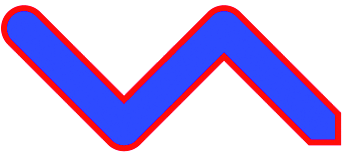
The result is shown in Figure 9. The original line has essentially been outlined.
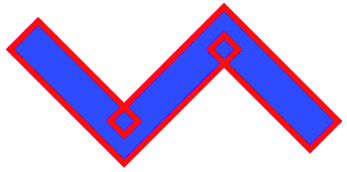
Obviously this path-widening method works, but there are two problems with it. The first problem is that GetWidenedPathGeometry is a method. If you created a PathGeometry with some animatable points, you'd have to make repeated calls to GetWidenedPathGeometry to animate the widened path.
The second problem with path widening is the obvious artifacts. It's easy to see where they come from—they are a familiar sight to anybody who has ever worked with widened paths in Windows.
For these reasons, I created a WidenedPath class that has a Data property like Path and a WideningPen property for the widening parameters. The image in Figure 10 is created by the following code:
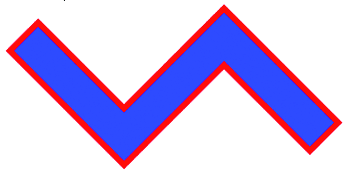
   WidenedPath widePath = new WidenedPath();
   widePath.Data = geo;
   widePath.WideningPen = pen;
   widePath.Stroke = Brushes.Red;
   widePath.StrokeThickness = 6;
   widePath.Fill = Brushes.Blue;
You might think that WidenedPath would be a fairly easy adaptation of ParallelPath, but there are other complications involved. If it is done properly, the widening of the path must take account of line caps and joins—the Pen properties StartLineCap, EndLineCap, and LineJoin. This requires the path-widening algorithm to potentially add curves to the path, as shown in Figure 11.
However, WidenedPath does not take account of the Pen properties DashStyle, DashCap, or MiterLimit. Although WidenedPath creates fewer artifacts than GetWidenedPathGeometry, it is not entirely immune from them. As with ParallelPath, you can minimize these artifacts by increasing the Tolerance property.
Although I have focused on classes that use the "coordinate" paradigm implemented by the Shape class, I'm sure you haven't forgotten about the "autosize" paradigm.
Judging from some experimentation with Rectangle and Ellipse, these classes always return Transform.Identity from their GeometryTransform methods and instead base the size of the DefiningGeometry on information obtained by overriding the MeasureOverride and ArrangeOverride methods.
After experimenting with that approach in creating a RegularPolygon class, I tried coding the class as if it instead used the "coordinate" paradigm. I didn't attempt to take account of any coordinates or sizes, but instead based the polygon on a circle with the center at (0, 0) and the radius as 1, and then let WPF handle the rest.
The result was definitely not the same as Rectangle or Ellipse, but it varied the most when the Width and Height properties are set to NaN, and Stretch is set to Uniform or Fill. In many of these cases, RegularPolygon is visible while Ellipse is a tiny ball.
Included with the source code is a program called StretchExplore that lets you view Ellipse, RegularPolygon, Line, and PointLine figures under all combinations of Stretch, HorizontalAlignment, VerticalAlignment, Width, and Height settings. You can then decide for yourself whether my simple approach in RegularPolygon works in your own applications.
Send your questions and comments to mmnet30@microsoft.com.