The Windows Presentation Foundation application model distinguishes between two application types: standalone and browser. A standalone application displays content through its own windows, dialogs, and message boxes, while a browser application consists of its own pages that are hosted in a browser.
Similarly, Windows Presentation Foundation distinguishes between two styles of navigation: menu driven and hyperlink driven. Menu-driven applications allow users to navigate content and functionality using menu bars, tool bars, windows, and dialogs, just as with any traditional desktop Windows-based application. Hyperlink-driven uses hyperlinks to deliver a navigation experience that resembles Web applications.
It goes without saying that standalone applications naturally support menu-driven navigation and browser applications naturally support hyperlink-driven navigation. But the Windows Presentation Foundation application model lets you mix and match elements of both. In most cases, this involves either partially or completely integrating a hyperlink-driven experience into a standalone application. The combination you use should be based upon the type of experience that will most benefit your users. Once you've decided on the experience you want to deliver, you can use the Windows Presentation Foundation application model to build it.
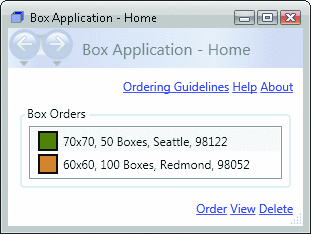
Consider the sample Box Application, shown in Figure 1. This is a standalone, menu-driven application that allows people who need boxes to list, order, view, and delete box orders. To provide this user experience, you need to begin with the most fundamental of all application model building blocks: creating an application.

A Windows-based application consists of some standard plumbing, including both an entry point and a message loop, and possibly may also require one or more of the following common application services:
- Processing command-line parameters
- Returning an exit code
- Application-scope state
- Detecting and responding to unhandled exceptions
- Managing application lifetime
Windows Presentation Foundation centralizes both plumbing and services within a single type, System.Windows.Application, which you can use from markup (XAML), code (C# or Visual Basic®), or a combination of both (known as markup and codebehind). Application turns out to be so useful that Visual Studio® 2005 automatically adds an instance of one to every new .NET Framework 3.0 (formerly known as WinFX®) Windows Application project:
<!--App.xaml (markup)-->
<Application
  xmlns="http://schemas.microsoft.com/winfx/2006/xaml/presentation"
  xmlns:x="http://schemas.microsoft.com/winfx/2006/xaml"
  x:Class="BoxApplicationWindow.App"
/>

// App.xaml.cs (codebehind)
public partial class App : Application { ... }
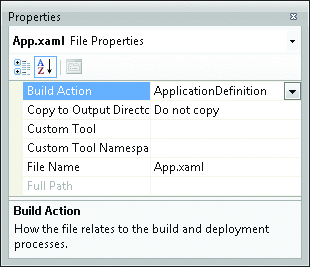
If you've programmed with a Windows presentation technology before, such as Windows Forms and Win32®, you may be in for a surprise. There isn't a single piece of code that looks remotely like the code used to establish the standard Windows-based application plumbing, including the entry point. This is because the application plumbing is generated for you, which is a result of Visual Studio 2005 configuring your Application markup file as an ApplicationDefinition build action, as shown in Figure 2.
Under the covers, the equivalent of this code is generated:
// App.cs
using System;

public partial class App : Application
{
  [STAThread]
  public static void Main()
  {
    // Initialize and run the application
    App application = new App();
    application.Run();
  }
}
What exactly is created doesn't really matter, though, since you neither have to write it nor understand its intricacies. Instead, you are shielded by the most complete application abstraction in a Microsoft presentation technology to date, which you can use to create a running application with only a single piece of markup. All you need to do is use Application's services. For standalone applications, this involves showing a window when an application starts running.
In Windows Presentation Foundation, a window is a Window. A Window has always been the core unit of content hosting in standalone applications. You can add a Window definition to your project in Visual Studio 2005 by choosing Project | Add New Item | WinFX Window, which generates the following:
<!--MainWindow.xaml (markup)-->
<Window
  xmlns="http://schemas.microsoft.com/winfx/2006/xaml/presentation"
  xmlns:x="http://schemas.microsoft.com/winfx/2006/xaml"
  x:Class="BoxApplication.MainWindow"
</Window>

// MainWindow.xaml.cs (codebehind)
using System.Windows;
public partial class MainWindow : Window { ... }
When the window definition is added, Visual Studio 2005 automatically configures the markup file's build type to Page. When built, the markup is turned into a special type of resource that can be identified uniquely by a Uniform Resource Identifier (URI). Essentially, this enables Windows Presentation Foundation to load a Window declaratively from a URI, and you can use this capability to specify a window to be automatically opened when an application starts. You do this by setting the Application.StartupUri attribute in markup, as shown here:
  <!--App.xaml (markup)-->
  <Application ... StartupUri="MainWindow.xaml"  />
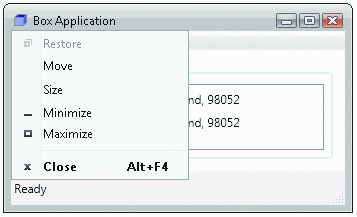
This creates and shows a window like the one in Figure 3. Like all windows, Windows Presentation Foundation windows contain a client area (this houses Windows Presentation Foundation content and controls) and a non-client area (a border, a title bar, and the various adornments associated with these).
The window that results from Application.StartupUri is modeless, which means it doesn't prevent users from using other windows in the application. Since you haven't created any other windows yet, this isn't so exciting. However, if you need to show other modeless windows, as you'll probably need to do in any nontrivial application, simply call Window.Show:
// MainWindow.xaml.cs (codebehind)
public partial class MainWindow : Window
{
  void helpContentsMenuItem_Click(object sender, RoutedEventArgs e)
  {
    HelpWindow window = new HelpWindow();
    window.Owner = this; // Ensure window always appears above us
    window.Show();
  }
  ...
 }
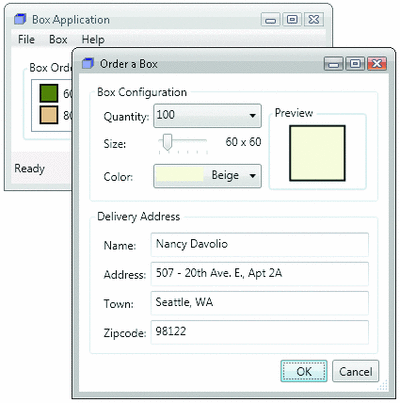
Windows Presentation Foundation also supports showing a window modally, which means the window prevents other windows in an application from being used. Modal windows are typically (but not always) used as dialogs, to collect data needed for completing a task such as creating a new order. To show a window modally in Windows Presentation Foundation, call Window.ShowDialog (see Figure 4).
The Window class also supports typical dialog behavior, which allows users to accept or cancel a dialog and have that choice returned to the calling code for appropriate processing.
Message boxes are a special type of dialog for displaying information to users, or asking them questions, and is supported in Windows Presentation Foundation with the MessageBox type:
// MainWindow.xaml.cs (codebehind)
public partial class MainWindow : Window
{
  void aboutMenuItem_Click(object sender, RoutedEventArgs e)
  {
    MessageBox.Show("Box Application, Version 1.0");
  }
  ...
}
Message boxes, dialogs, windows, and applications form the core of the standalone, menu-driven application development model. And these have been supported by previous presentation technologies for a long time now. However, Windows Presentation Foundation extends these with hyperlink-driven navigation support that begins with the fundamental unit of navigation content—the page.
Page is the Windows Presentation Foundation analog of the HTML Web page, which helped popularize the Web. As I mentioned, Windows Presentation Foundation supports hyperlink-driven navigation in both standalone and browser applications. The content cornerstone of the hyperlink-driven navigation experience in Windows Presentation Foundation is the Page.
You add a markup and codebehind Page definition to your project in Visual Studio 2005 by choosing Project | Add New File | WinFX Page. This generates code resembling what's shown in Figure 5.
The Page markup file is configured as a Page build item. As with Window, this is done so it can be loaded from a URI, which means you can configure Application.StartupUri to automatically load a page when an application starts:
<!--App.xaml (markup)-->
<Application ... StartupUri="HomePage.xaml" />
Because the Page class is not a window, and doesn't derive from Window, it can't host itself. Fortunately, the Application class is smart enough to detect when a particular page is set as the StartupUri. If so, Application creates a window in which to host the page.
Any nontrivial hyperlink-driven application will have more than one XAML page, and you'll need to give your users a way to navigate between these pages. You can probably guess that Windows Presentation Foundation enables hyperlink-driven navigation with hyperlinks. You can add hyperlinks to your pages like so:
<!--HomePage.xaml (markup)-->
<Page ... >
  ...
      <Hyperlink NavigateUri=          "OrderingGuidelinesPage.xaml">
    Ordering Guidelines
  </Hyperlink>
  ...
</Page>
This hyperlink is configured to navigate to a XAML page using the same fundamental programming model as HTML HREFs. You specify a URI to navigate to (in this case, OrderingGuidelinesPage.xaml) and the text that users will see and click on to initiate navigation (in this example, "Ordering Guidelines").
Since so much browsable content is located in HTML-based Web pages, it's nice that Windows Presentation Foundation and Hyperlink let you seamlessly navigate to Web-based content. For example, the ordering guidelines already exist on the Box Application's Web site so, rather than replicating them as XAML pages within the application, you can simply change the value of the NavigateUri property:
<!--HomePage.xaml (markup)-->
<Page ... >
  ...
  <Hyperlink NavigateUri="OrderingGuidelinesPage.html">
    Ordering Guidelines
  </Hyperlink>
  ...
</Page>
At this point, you might be wondering one of several things. Since Page is not a window, where did the window that's hosting it come from? When a hyperlink is clicked, what actually handles the navigation? And how is HTML Web page content displayed from a Windows Presentation Foundation application? All of these things are taken care of by NavigationWindow.
When you set Application.StartupUri to either a XAML or HTML page, Application (knowing that neither of these can provide its own window) creates an instance of NavigationWindow to host them. NavigationWindow derives from Window and extends its visual appearance to look a little like a browser, as you can see in Figure 6.
When a user clicks a hyperlink that appears on a XAML page, Hyperlink asks NavigationWindow to navigate to the specified URI. NavigationWindow proceeds to load the page that is located at the URI, thus hosting it. The URI location from which the page was loaded is stored in the NavigationWindow.Source property, while the loaded page content is available from the NavigationWindow.Content property.
When content changes, navigation is considered to have taken place and the previous content is added to the navigation history. This, too, is managed by NavigationWindow. The navigation UI provides two buttons and dropdown lists for navigation. Note that you are not limited to NavigationWindow's default chrome. Using Windows Presentation Foundation's support for styles, you can easily create your own navigation UI.
So far, I've shown you how to use markup for configuring the URIs that hyperlinks should navigate to. Sometimes, though, you can't determine your navigation declaratively. For example, if you want to view an order, you need to create an instance of Page and pass it the order you want to view. This can't be done declaratively. Instead, you need to use code, as shown in Figure 7.
When the hyperlink is clicked, its Click event handler gets the order that is currently selected, passes it to ViewOrderPage during instantiation, and calls its host NavigationWindow's Navigate method, which then navigates to the page as an object, rather than as a URI.
You may find it odd to have to acquire a reference to the host NavigationWindow. This is necessary because Page does not have explicit knowledge about what is actually hosting it. Page can determine the host using its Parent property, but Parent returns a reference to a DependencyObject, rather than a strongly typed reference to a particular host type. Thus, casting Parent to a specific type implies that Page knows what can host it. But, as you'll discover, Page can have different types of hosts. Consequently, if you intend for your pages to be hosted by multiple types of hosts, you need a host-independent way of programmatically performing navigation.
In Windows Presentation Foundation, independence between a page and a page's host is established by NavigationService, which implements the basic machinery of a navigation engine including navigation, navigation history, navigation lifetime, content, and finding a navigation service for a piece of content. Figure 8 shows the essential members of the NavigationService type.NavigationWindow doesn't actually implement its own navigation engine; it uses its own instance of NavigationService. With that in mind, Page can actually get a reference to the NavigationService of the NavigationWindow that hosts it using GetNavigationService:
// HomePage.xaml.cs (codebehind)
public partial class HomePage : Page
{
  void viewHyperlink_Click(object sender, RoutedEventArgs e)
  {
    // View Order
    ViewOrderPage page = new ViewOrderPage(GetSelectedOrder());
    NavigationService ns =
      NavigationService.GetNavigationService(this);
    ns.Navigate(page);
  }

  Order GetSelectedOrder() { ... }
  ...
}
This lets Page do navigation without any specific knowledge of its host. This requirement is so common that Page provides a special helper property, NavigationService, which has the same effect:
// HomePage.xaml.cs (code-behind)
public partial class HomePage : Page
{
  void viewHyperlink_Click(object sender, RoutedEventArgs e)
  {
    // View Order
    ViewOrderPage page = new ViewOrderPage(GetSelectedOrder());
    this.NavigationService.Navigate(page);
  }

  Order GetSelectedOrder () { ... }
  ...
}
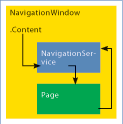
Figure 9 illustrates the relationship between NavigationWindow, NavigationService, and Page. As you can see, NavigationWindow re-implements its NavigationService's Content property. NavigationWindow re-implements the majority of NavigationService's members in this way, and even adds some more. For example, you can enumerate the content in back and forward navigation history via the BackStack and ForwardStack properties, respectively.
Unfortunately, you can't create your own custom type that aggregates NavigationService (even though it is a public type, it has an internal constructor that consequently prevents instantiation). Instead, you have to rely on one of three Windows Presentation Foundation NavigationService aggregators to host content. Collectively, these are known as navigators and include NavigationWindow, Frame, and browsers (only Internet Explorer® versions 6 and 7 for Windows Presentation Foundation version 1.0). When a page is coded to use its own NavigationService property, it can be hosted in all three without change, as Figure 10 illustrates.

Perhaps most exciting is that you can take a page hosted within a single standalone application and suddenly you're able to host it anywhere using Internet Explorer.
NavigationWindow, Page, and Hyperlink provide a nice way to offer browser-style user experiences in a standalone application. In one sense, NavigationWindow is a browser, though without all the frills built into today's browsers like favorites, tabbed browsing, and the like. Since most users are browser savvy, many will feel more comfortable with an application that provides the same level of capability or, indeed, integrates with browsers. If your application will benefit from a browser-hosted and hyperlink-driven environment, Windows Presentation Foundation XAML Browser Applications (XBAPs) are the way to go.
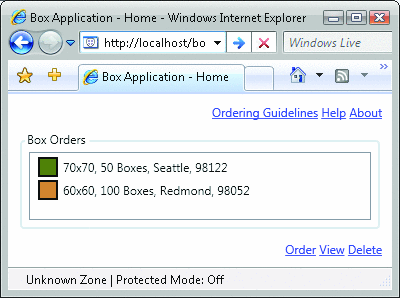
To create an XBAP version of the sample application, create a new .NET Framework 3.0 Web Browser Application in Visual Studio 2005, copy the files from the NavigationWindow version of the sample (excluding the application definition), and voilà. The resulting application will run hosted by Internet Explorer, as shown in Figure 11.
XBAPs can also be published to and launched from Web servers, on either the intranet or the Internet. This is made possible through ClickOnce Deployment, which is included with the .NET Framework 3.0. To use ClickOnce, MSBuild generates the executable that users ultimately run, as well as two manifest files that ClickOnce requires for downloading and launching the executable. One of these is known as the application manifest; it has the .xbap file extension and is what users actually browse to when they want to launch an XBAP. Note that the launch process is seamless to the user—the experience of browsing to an XBAP application is like browsing to any application running in a browser.
When an application can be launched from the Internet, security is a significant factor. For this reason, XBAPs are not installed. Furthermore, XBAPs leverage the .NET Framework's Code Access Security (CAS) to protect users from malicious code through the use of an enforced security sandbox—XBAPs can only do things that are allowed for apps launched from the Internet zone, a restricted set of operations. Furthermore, if an XBAP attempts to execute functionality that exceeds what is enabled by the Internet zone, an exception is thrown and the application stops executing.
Internet zone permissions prevent a variety of capabilities in Windows Presentation Foundation version 1.0, including showing windows, using the SaveFileDialog, registry access, and accessing the HTML Document Object Model (DOM) via script. While you need to sacrifice features like these to enjoy the benefits of CAS-secured XBAP applications, you still have most of what is really cool about Windows Presentation Foundation at your command.
Frame embeds browser-style user experiences into content that may be hosted by other navigators (standalone or browser-based, menu- or hyperlink-driven). Given its flexibility, you should be guided by your intended user experience when determining how to use it.
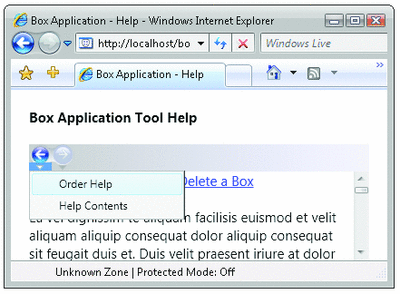
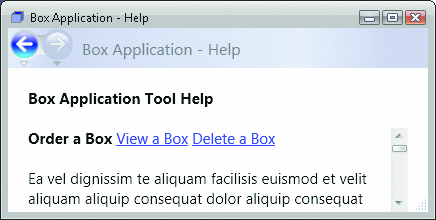
Standalone, menu-driven applications don't provide the best model for navigating through document-style content, such as a help file. A hyperlink-driven approach may be more suitable and links can be easily embedded into a standalone application's window, as shown in Figure 12. This is enabled with the following markup:
    <!--HelpDialog.xaml (markup)-->
<Window ... >
    <DockPanel>
        <TextBlock
          Padding="20,20,20,20"
          DockPanel.Dock="Top"
          TextWrapping="Wrap"
          FontSize="15"
          FontWeight="Bold" >
            Box Application Help
        </TextBlock>
        <Frame Padding="20,0,20,0"           Source="HelpPageContents.xaml" />
    </DockPanel>
</Window>
Alternatively, Frame can be used much like the HTML IFRAME element by being hosted within the content of a Windows Presentation Foundation page, as shown in Figure 13. The markup will look like this:
 <!--HelpPage.xaml (markup)-->
 <Page ... >
     <DockPanel>
         <TextBlock
           Padding="20,20,20,20"
           DockPanel.Dock="Top"
           TextWrapping="Wrap"
           FontSize="15"
           FontWeight="Bold" >
             Box Application Help
         </TextBlock>
         <Frame ... Source="HelpPageContents.xaml" />
     </DockPanel>
 </Page>

By default, when a frame is hosted within content that is itself directly or indirectly hosted by another navigator, the frame uses the navigation service that is managed by the parent navigator. This means that the frame's navigation history is really stored in its parent navigator's navigation history, along with the parent navigator's own navigation history. Thus, the frame's navigation history must be navigated all the way back or forward before the parent navigator's navigation history can be navigated. However, this is not a bad thing if your parent navigator hosts content that can be shared across the one or more pages. This is somewhat analogous to ASP.NET's master/child content.
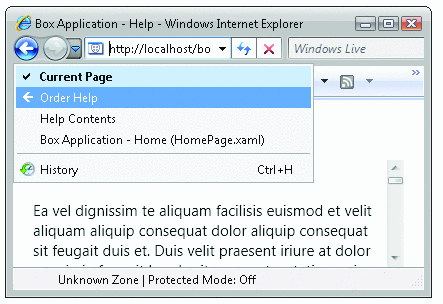
On the other hand, such navigation can be painful for users when the pages in a frame make up a single logical set of content—for instance, a help file rather than one or more help pages. Once a user goes to Help and navigates to the appropriate help page, he is unlikely to want to navigate back through all the help pages he browsed; instead, he'll probably want to go straight back to the previous parent page. In this situation, you can instruct a frame to use its own navigation history by setting its JournalOwnership property like so:
<Page ... >
  ...
  <Frame ... JournalOwnership="OwnsJournal" />
  ...
</Page>
JournalOwnership is a property you set to determine which "journal" a frame will use (the internal Journal type encapsulates navigation history in Windows Presentation Foundation), and can be one of the JournalOwnership enumeration values:
enum JournalOwnership
{
  Automatic,        // "UsesParentJournal" if hosted by Frame or
                    // NavigationWindow, "OwnsJournal" otherwise.
                    // (default)
  OwnsJournal,      // Frame manages navigation history
  UsesParentJournal // Frame's host manages navigation history
}
When Frame has its own navigation history, it displays its own navigation user interface to visually reinforce the distinction, as shown in