
The recently released InfoPath 2003 SP1 Preview provides a sneak peek at the InfoPath enhancements that will ship with Microsoft® Office 2003 SP1 around the middle of 2004. The preview is packed with new features, others which improve the user experience and some which improve the developer experience by increasing flexibility and control. I'll walk through several of these new features with a focus on those that apply to developers.
The initial InfoPath 2003 release helped businesses begin to realize the power and flexibility that comes from using XML and Web services throughout the enterprise. Most already understood the basic interoperability benefits of these technologies, but it wasn't until the release of InfoPath 2003 that they were able to visualize how members across their organizations could tap into their XML resources.
In a nutshell, InfoPath 2003 makes it extremely easy to build forms based on XML Schema or Web Services Description Language (WSDL) definitions. It's so easy that anyone, regardless of their technical background, can do it. Within minutes you can have a form up and running that's capable of producing documents or SOAP messages that conform to a specific WSDL contract. You can check out the September 2003 MSDN® Magazine article titled "Turn User Input into XML with Custom Forms Using Office InfoPath 2003" for additional background information on the basic InfoPath 2003 features.
Although the initial release was a major breakthrough in many ways, it was wanting in a few areas. The recently released service pack preview provides several major improvements right away rather than waiting for the next major release. The significance of these improvements makes this release feel less like a service pack and more like a major upgrade.
To get started, you can download and install the InfoPath 2003 SP1 Preview from Microsoft Office Online. It's a full installation so you have to remove your current version of InfoPath before running the installer (unlike the process with a typical service pack).
Compatibility is one of the most common concerns when installing a service pack or an upgrade. If you've built large systems using the current InfoPath 2003 release you'll want to make sure that installing the service pack won't break anything. In the case of InfoPath 2003 SP1 Preview, there are several options available that allow you to maintain compatibility with existing forms while experimenting with the new features. Forms created with the current version of InfoPath 2003 are 100 percent compatible with the SP1 Preview.
After running the installation, InfoPath 2003 can take advantage of the new service pack features, but you don't have to use them. You can disable them by selecting "Disable Service Pack features" from Tools | Options | Advanced (a global program setting). The next time you start InfoPath 2003, you won't be able to use the new service pack features in any of the forms you're designing. In fact, you won't even be able to open forms that employ SP1 features until you reenable support through this dialog. This ensures compatibility with users who do not have SP1 installed. Even with the feature enhancements disabled, you'll still be able to take advantage of the performance updates, bug fixes, and so on.
Assuming you haven't disabled the service pack features globally, you can also control support for service pack features on a form basis. For example, when you open a form created using the current version of InfoPath 2003, a dialog will ask you if you want to enable the service pack features in the existing form. If you choose "Yes," you'll be able to take advantage of the new features, but only users with SP1 installed will be able to work with your form. If you choose "No," the form will remain compatible with the current release, but you won't be able to use the new features. If you decide later that you'd like to add the service pack features to your form, you can always select "Add Service Pack Features to Form" from the Tools menu.

The new service pack features are automatically enabled when you create new forms with SP1 installed (unless, of course, you disable the new service pack features globally). If you create a form that uses service pack features and later decide that you need a version that can be used without SP1 installed, you can always export such a version from the Form Options dialog (check Figure 1 to see where the options are located in this dialog). However, one thing to keep in mind is that the exported copy will lose all of the enhanced service pack features.
As with most service packs, the InfoPath 2003 SP1 Preview includes various bug fixes, performance improvements, and security enhancements. In addition to these standard service pack items, SP1 is packed with compelling functional enhancements that improve the user experience and give developers more control over form design and functionality.
These enhancements include a variety of new controls and layout options. For example, SP1 introduces a new master/detail control that models traditional master/detail relationships commonly found in data sources. In addition, SP1 introduces a file attachment control that allows users to attach local files to a form easily. There are several other new layout controls available including a repeating recursive section, a choice section, a choice group, and a repeating choice group, among others.
There's also a new condition builder feature inside that enables form designers to dynamically change form options available to users based on roles or other criteria. In addition to InfoPath's built-in controls, SP1 makes it possible to author and use custom controls in your forms.
The InfoPath 2003 SP1 Preview also gives you more control over form display and printing. Form designers can insert page breaks that take effect only during printing but not while a user is filling out the form. There are also new font enhancements that make for better digital form reproduction.
Other enhancements include better support for secondary data sources, better DataSet (and DiffGram) support for sending updates back to a database, and increased protection against data loss through auto-save and auto-recovery functionalities that are available when the user is filling out forms.
However, some of the most compelling enhancements revolve around Tablet PC inking, security and signatures, improved e-mail deployment, form extensibility and integration with other technologies, and the new support for Visual Studio .NET development. I'll cover each of these areas in more detail.
SP1 comes with many enhancements that benefit Tablet PC users. For starters, InfoPath automatically detects when you're filling out a form on a Tablet PC and allows you to enter data in "ink" mode. You simply write over the form's controls by hand and InfoPath uses an ink-to-text transformation to fill it in. This process is completely automatic at run time and transparent to the form developer at design time.

You can also design forms specifically for Tablet PC users with the Ink Picture control. This control allows users to save ink drawings or handwriting directly into a form. The form shown in Figure 2 illustrates how you could use the Ink Picture control to store a handwritten signature on a form field entered using the "inking" capabilities of a Tablet PC. When the user fills out this form and saves it, the signature will be stored as encoded binary data in an XML element (of type xsd:base64Binary) so that other applications can then process it.
SP1 introduces three security levels (restricted, domain, and full trust) that specify the level of trust required by a given form. You can access this setting by selecting Tools | Form Options | Security. Restricted trust means the form cannot access data outside the form, domain trust means the form can access data from the domain in which it's located, and full trust means the form has access to files and data on the user's computer.
Form designers can enable full trust by digitally signing a form with a digital certificate. Then users filling out the form can define which publishers they fully trust, thus allowing only trusted form publishers access to files and settings on their computers. However, users can always deny all form access to their local files and settings when they so desire.
You can also require users to sign their filled-out forms before submitting them. You can have users sign the entire form or just portions of it. You can even specify elements of your form that you want signed. Each form element may be signed independently—a feature known as co-signing. Or you can have each new signature sign the preceding signatures, using a feature known as counter-signing. These flexible signature techniques make it possible to provide verification and non-repudiation in a variety of ways to meet your legal needs.
For example, assume you have a simple form that contains several elements, but only two—SSN and CreditCard—need to be signed. You can specify this while designing the form by going to Tools | Form Options | Digital Signatures and indicating which elements need to be signed (see Figure 3).
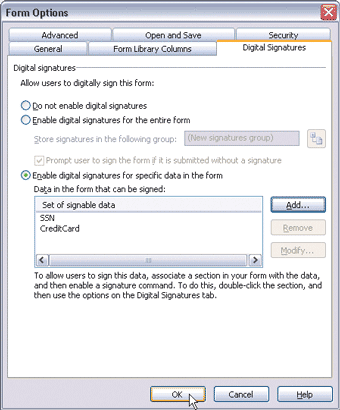
Then when a user fills out this form he can sign these specified elements simply by pressing the Digital Signatures button on the toolbar (the little red ribbon). Performing this action opens the Digital Signatures dialog, which allows the user to add and remove signatures from a given form. Then when the user presses the Add button, the Digital Signature Wizard allows him to select a particular form element that he would like to sign.
After going through the wizard, you'll have a new signature saved into the form. The wizard allows you to select a certificate with which to do the signing and it allows the user to enter a comment to include in the signature. Adding extra information to the signature provides you with some flexibility that can help indicate the intention of the signer.
You can even see the form as it existed when a user digitally signed it. Simply press the View Signed Form button on the Digital Signatures dialog and you will see the form exactly as it looked when it was originally signed.
When you e-mail a form template with InfoPath 2003 and other people try to open it, they'll typically get an error saying that the file has been moved or copied from its original location because they don't have access to the original form template. This is a result of the way the template's path is saved in the .xsn file for versioning purposes.
The preview release improves support for the scenario in which you want to deploy forms via e-mail and update trusted solutions without worrying about versioning. You can simply choose "Send as Attachment" from the file menu and InfoPath will package the form template into an attachment that others will be able to open without having access to the original form template.
SP1 makes it possible to extend and integrate with InfoPath forms in a variety of ways. One new way to extend the functionality of InfoPath forms is through support for ActiveX® controls, which allows you to take advantage of the wide variety of UI controls developed in the COM era. On a similar note, SP1 also introduces improved support for ADO.NET DataSets and its native DiffGram format for representing changes to a resultset.
InfoPath 2003 introduced an Expression Box control for evaluating simple XPath expressions across different fields in the form. SP1 enhances that capability by providing a palette of built-in functions including avg, sum, max, min, now, today, concat, and several others (some of these are provided by XPath while others are InfoPath extension functions). Before SP1 you had to write macros and script to accomplish these tasks.
You can also use XPath expressions to enhance form validation at run time. InfoPath will automatically provide XML Schema validation while users fill out forms. SP1 also introduces support for declarative (XPath) business rules that you can associate with any control to enhance run-time validation logic. XPath business rules allow you to express constraints that are not possible to describe in XML Schema.
In addition to these features, SP1 provides better support for XML Schema extensibility. For example, the current version of InfoPath has a hard time dealing with changes to the form's underlying schema after you've begun designing the form. This forces you to start over after making a change to the underlying schema. SP1 now provides built-in support for schema changes and complete changes to a form's underlying data source. This makes it quite easy to evolve an InfoPath solution over time.
The last new feature I'm going to discuss is by far the most compelling. SP1 makes it possible to integrate InfoPath with Visual Studio® .NET through a plug-in called the InfoPath 2003 Toolkit for Visual Studio .NET. This is a separate download that you can get from Microsoft Office Online. It requires you to have SP1 already installed.
Once you've installed the toolkit, you'll see some new project types in the Visual Studio .NET New Project dialog (Microsoft Office InfoPath Projects). You can create a new InfoPath Form Template project in either C# or Visual Basic® .NET.
When you create a new InfoPath Form Template project, the Microsoft Office Project Wizard runs and asks if you want to create a new InfoPath form template or base the project on an existing template that you've already designed. In the latter scenario, the form is converted to managed code, but the developer may need to rewrite business logic as script code is not converted to C# or Visual Basic .NET.
Once you press Finish, the wizard creates your new InfoPath form template and integrates it with your new Visual Studio .NET project. You'll see a new InfoPath window open with the new form you need to design as well as your Visual Studio .NET project.
If you browse the Visual Studio .NET Solution Explorer window, you'll notice that various InfoPath artifacts are part of your project (see Figure 4). These artifacts include the form manifest, template, view, and the data source the form is based on. In this case, I based the InfoPath form on an existing XML Schema definition named invoice.xsd.

The project also contains a C# source file, FormCode.cs, where you can put code to respond to InfoPath form events. When you build the project, Visual Studio compiles the code into an assembly, which is embedded in the InfoPath form template in order to simplify deployment.
To open the InfoPath form from the Solution Explorer, right-click on the solution node and select Open InfoPath. Then you can design your form using traditional InfoPath techniques.
You can add code to handle form events in a variety of ways. You can select from several events listed in the Tools | Programming menu including On Load, On Switch Views, On Context Change, and On Sign. You can also add code to respond to an event for a particular control. Simply open the control's property window and press the Edit Form Code button or navigate to the control's validation event handlers and select the one you want to handle. For example, Figure 5 shows the property window for a button control on an InfoPath form.

When you press the Edit Form Code button, InfoPath takes you back into Visual Studio .NET and adds an event handler that looks like the one shown here:
[InfoPathEventHandler(MatchPath="Button1",
  EventType=InfoPathEventType.OnClick)]
public void Button1_OnClick(DocActionEvent e)
{
   // Write your code here
   •••
}
The event handler methods are annotated with an [InfoPathEventHandler] attribute to help InfoPath figure out which method to call at run time. The code you write inside the event handler can access the underlying XML document to read or modify values as necessary. So extending an InfoPath form with custom logic is simply an exercise in XML DOM programming.
When you use the F5 function key, Visual Studio .NET loads your form for you and allows you to fill it out. You can set breakpoints in your event handlers to step through your code when the events fire. This tight integration with Visual Studio .NET provides a whole new level of control and flexibility to the development of InfoPath forms.
I've provided a complete sample project for you to download from the MSDN Magazine Web site. It contains the sample invoice form shown in Figure 6. This form allows a customer to fill out an invoice and it dynamically displays the total along the way. It needs to calculate the extended price (quantity * price) of each line item and then sum the results in order to display the invoice total (displayed at the bottom). This is something that you cannot accomplish with the XPath sum function alone, but it's quite easy to do by writing just a few a lines of C# code.

The total needs to be recalculated whenever a quantity or price value changes in the list of line items. You can do this by adding an OnAfterChange event handler for each data source field. Browse to the data source view in InfoPath and navigate to the Quantity and Price fields. Right-click on the field, select Properties, and navigate to the Validation and Event Handlers tab. Then select the OnAfterChange event handler (at the bottom of the dialog) and press Edit. This will take you back to Visual Studio .NET and it will insert a new event handler method in your code (see Figure 7).
Notice that the event handler looks different from the button example. In this case, the InfoPathEventHandler attributes contain a complete XPath expression to specify the field in the data source to which this event responds. I've added one of these for each field, but the implementation for Quantity_OnAfterChange simply calls Price_OnAfterChange.
Notice that the implementation of Price_OnAfterChange accesses the XML document using the DOM API and several XPath expressions through calls to selectSingleNode. This is how I extract the quantity and price of each line item. Then after I've calculated the total, I inject it back into the underlying XML document using the same technique.
It's important to note that InfoPath does not use the managed System.Xml APIs, but rather a build of MSXML 5.0, which is unmanaged. The toolkit comes with several InfoPath interop assemblies that simplify the interaction with these unmanaged components in your event handlers.
InfoPath 2003 SP1 is packed with new features, many of which make it possible for developers to build more usable, secure, and powerful solutions that are easier to maintain over time. The most compelling new feature is the integration with Visual Studio .NET, which allows you to write managed code that extends the capabilities of your InfoPath forms.
Send your questions and comments for Aaron to xmlfiles@microsoft.com.