Q I'm trying to write an MFC program that lists the disk drives on the system (C:, D:, and so on). I also need to know if the drive is a hard disk or a CD. Is there a class to get this information?
A There's no MFC class for that information, but Microsoft® Windows® has a group of volume management functions for just this purpose. They include functions for getting information about logical drives as well as volume mount points, an advanced NTFS feature that's not relevant here. For your purposes, you can just deal with logical drives. Figure 1 shows the relevant functions.
There are four basic functions: GetLogicalDrives, GetLogicalDriveStrings, GetDriveType, and GetVolumeInformation. A fifth, SetVolumeLabel, sets the volume label in case you want to do that. The functions are all fairly straightforward, but just to make your life as easy as possible, I've encapsulated them in an MFC-friendly class, CVolumeMaster (see Figure 2), which lets you deal with CStrings instead of TCHAR arrays. I also wrote a program, VolInfo.exe, that shows how to use it. The source is available in the code download at the link at the top of this article. Figure 3 shows VolInfo displaying detailed information about my own computer.
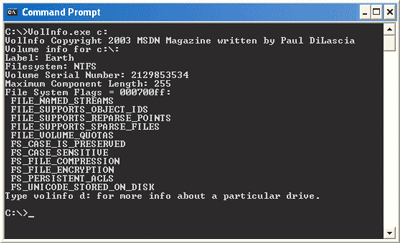
The first function, GetLogicalDrives, returns a DWORD that's a bitmask telling which drive letters are assigned. Bit 0 is drive A, bit 1 is drive B, and so on. Since there are 26 letters in the English alphabet and 32 bits in a DWORD, the mathematicians among you will quickly discern that one DWORD provides enough room to describe all possible combinations of drive letters, and then some. It's a good thing Redmond isn't located in Siberia! (Cyrillic has 33 letters.) CVolumeMaster has a static method, FormatBitMask, to format the bits as ASCII—VolInfo uses it to display a message like
10110 10001 11000 00000 00000 00000 00which says that on my computer I have drives at A,C,D,F,J,K, and L. Whew! If programming in binary is too much for your cerebral cortex, there's always GetLogicalDriveStrings, which returns all the drive letters concatenated into one big string. Each drive letter has the form D:\ (with a trailing \), where D is the drive letter and each string is terminated with a null character and two nulls at the end. Since I know how stressful it is dealing with TCHARs, I wrote a handy CVolumeMaster wrapper that gets the drive letters in a CStringArray. This is a C++ column, after all. To get the drive letters, all you have to write is:
   CVolumeMaster vm;
   CStringArray arDrives;
   int n = vm.GetLogicalDriveStrings(arDrives);
Now arDrives holds the drive letter strings and n is the total number of logical drives. Got it?
Once you know which letters have drives, how do you know what kind of drive each one is? That's what GetDriveType is for. GetDriveType returns a code like DRIVE_FIXED for hard disks or DRIVE_CDROM for CD-ROM drives. CVolumeMaster has a static function to format the type as a human-readable string; VolInfo uses it for output. See the code download for details.
Finally, if you want even more information about a logical drive, such as its volume label, what file system it's using, or whether the drive supports named streams and encryption, GetVolumeInformation is the function to call. This Swiss-army-knife function gets the volume label, file system name (for example, NTFS or FAT), volume serial number, file system flags, and maximum component length.
"What the heck is the component length?" you ask. That's file-system-speak for the length of the part of a path name that can come between backslashes. In other words, if the file name is c:\mumble\bletch\oops, then mumble, bletch, and oops are the components, and there's a limit to how long each component can be. You can use VolInfo to discover that NTFS supports a maximum component length of 255, while CD-ROM drives usually only allow 127. This explains why, when saving your entire MP3 collection to CD, you often get a message stating that some file name or other is too long and asking if it's OK to truncate it.
CVolumeMaster has its own version of GetVolumeInformation—one that uses CString instead of LPTSTR:
CString volname,filesys;
DWORD serno, maxcomplen, flags;
vm.GetVolumeInformation("C:\",
  volname, serno, maxcomplen, flags, filesys);
Incidentally, the reason I keep stressing the use of CString is not only because it's easier, it's also more secure. With all the focus on security and bad viruses floating around these days, even Arnold Schwarzenegger knows what a buffer overflow is. Using CString is a good way to avoid one.
As for the flags, they're defined in Figure 4. WinBase.h and WinNT.h show the flags GetVolumeInformation can return. Once again, CVolumeMaster has a function to format them in a human-readable string—just the ticket for VolInfo and debugging your own application.
Q Now that you're a C# guru (as well as a C++ guru), I have a question. How can I modify the system menu? In C++, I used the GetSystemMenu function, but I can't figure out how to do it in C#.
A Hey, Philippe—I don't get to call myself a C# guru until I've had at least 10 years experience, and C# hasn't been around that long! However, I do know the answer to your question: use GetSystemMenu. That's right—just do it the same old way you would in C++. How's that? By using interop, of course.
Sometimes I feel like a bit of a broken record because so many of the C# questions I get have the same answer: use interop. That's because I mostly get GUI questions and Windows Forms currently exposes only a basic subset of Windows. As soon as you want to do something sophisticated, you have to fall back on Win32®. Fortunately, the Microsoft .NET Framework interop services make it easy.
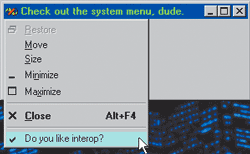
If there was a way to get the system menu using Windows Forms, the place to look would be in the Form class for a property called something like SystemMenu. Alas, there's no such property. Control has Control.ContextMenu for the context menu, and Form has Form.Menu for the main Menu, but there's no SystemMenu or any other property to access the system menu directly using Menu. That's why you need interop. I wrote a little program, SysMenu, that shows how. Figure 5 shows the code. Figure 6 shows it running with the modified system menu displayed.
To use GetSystemMenu, first declare it the interop way, using DllImport. For SysMenu, you actually need two functions: GetSystemMenu and AppendMenu.
using System.Runtime.InteropServices;
public class Form1 : Form
{
  [DllImport("user32.dll")]
  private static extern IntPtr GetSystemMenu(IntPtr hwnd, int bRevert);
  [DllImport("user32.dll")]
  private static extern bool AppendMenu(IntPtr hMenu,
    MenuFlags uFlags, uint uIDNewItem, String lpNewItem);
}
You should always use IntPtr for HWNDs, HMENUs, and any other kind of Windows handle. For LPCTSTRs, declare the argument as String. The interop services will automatically marshal your System::String to LPCTSTR before passing it to Windows. As for MenuFlags, that's an enum you must define yourself:
public enum MenuFlags {
  MF_INSERT = 0x00000000,
  MF_CHANGE = 0x00000080,
    ••• // etc
}
You don't have to use an enum, but it's more type safe. The MF_XXX values come from WinUser.h. Finally, you need an ID for your new command. In SysMenu, IDC_MYCOMMAND has the value 100. If you use values below 0xF000, you're guaranteed not to conflict with SC_MINIMIZE, SC_MAXIMIZE, or any other built-in system commands. Make sure you don't conflict with your own main menu commands, either.
With all these definitions in place, you're ready to add your menu item. All it takes is a few lines in your Form's constructor. First, get the system menu
// Get system menu
IntPtr hSysMenu = GetSystemMenu(this.Handle, 0);
then add your command:
// Add separator and new command
AppendMenu(hSysMenu,MenuFlags.MF_SEPARATOR,0,null);
AppendMenu(hSysMenu,
  MenuFlags.MF_BYCOMMAND, IDC_MYCOMMAND,
  "Do you like interop?");
Now when the user clicks the system menu in the window's title bar, your new menu item appears, as in Figure 6. Just for fun, I gave it a checkmark. But what happens if the user invokes your command? Right now, nothing. To handle the command, you have to override your Form's virtual WndProc method.
const int WM_SYSCOMMAND = 0x0112;
protected override void WndProc(ref Message msg)
{
  if (msg.Msg==WM_SYSCOMMAND) {
    if (msg.WParam.ToInt32() == IDC_MYCOMMAND) {
      // handle it!
      return;
    }
  }
  base.WndProc(ref msg);
}
Whatever you do, don't forget to call base.WndProc if the message isn't yours. Otherwise your app will go home in a box.
Well, that's it for today. As usual, you can download the source for all programs described here from the MSDN® Magazine Web site. Happy Programming!
Send your questions and comments for Paul to cppqa@microsoft.com.