Q Are the SendToBack and BringToFront methods the only options for modifying the z-order of Windows® Forms controls?
A It took a suggestion from one of my buddies at Microsoft to figure this stumper out. Of course, it's pretty simple once you know how to do it.
There is no property on a Windows Forms control to manipulate z-order as there was in previous versions of Visual Basic® (ZOrder). It turns out the method you need is in the Controls collection. The SetChildIndex method allows you to set the z-index of a particular control. The following line, from the click event in Figure 1, changes the z-index of Label2:
Me.Controls.SetChildIndex(Me.Label2, Label2NewIndex)To retrieve the current index of a control call the GetChildIndex method, as shown in the ShowIndex method in Figure 1.
Q How can I use the CopyTo method of the Windows Forms controls collection to copy controls into an array?
A The CopyTo method will take the current controls collection and copy all the controls into an array. In order to use it, you must specify the array and the starting point. For instance, the following code copies the controls to the MyArrayOfControls array starting at the first element:
Me.Controls.CopyTo(MyArrayOfControls, 0)
Follow along with me while I create a sample to illustrate this. First, I created a form named frmControlsToArrayMaster that contains a set of six label/textbox pairs and three buttons. Next, I created a second form, named frmArrayClient, which has no controls but is the same size as the first form. Then I was ready to write some code.
The first code I wrote wired up the cmdCopy_Click event (see Figure 2). This event redims the MyArrayOfControls array to the number of controls in the collection. I then used CopyTo to copy the controls to the array starting at the first position. I put this code inside a button click event to make it easier to see when you run it.
Next, I wired up the cmdNew_Click event. The first version of the code looked like this:
Private Sub cmdNew_Click(ByVal sender As System.Object, _
   ByVal e As System.EventArgs) Handles cmdNew.Click
   Dim frm As New frmArrayClient
   frm.ShowDialog()
End Sub
Then, I added the following code to frmArrayClient:
Dim ct As Control
If MyArrayOfControls.GetUpperBound(0) > 0 Then
   Me.Controls.AddRange(MyArrayOfControls)
For Each ct In Me.Controls
   If ct.GetType.ToString = "System.Windows.Forms.Button" Then
   ct.Visible = False
   End If
Next
End If
This code adds the controls from the first form by calling Controls.AddRange. Then it sets the Visible property of any buttons to False because I don't want the same command buttons on this form. Pretty cool? Let's see. Take a look at Figure 3.
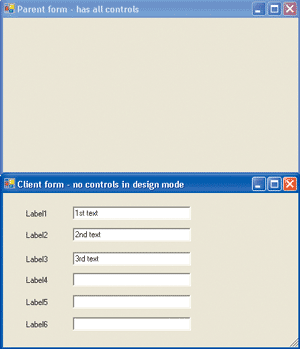
The top form is frmControlsToArrayMaster, which has the controls on it. But where are these controls? When AddRange was called in frmArrayClient, it actually loaded the controls from my array on the new form. Since a control can only have one parent, the controls were reassigned as children of the new form (frmArrayClient). This means the controls are no longer on the first form (frmControlsToArrayMaster).
The cmdNew_Click code shown in Figure 2 takes a stab at fixing this. It puts the controls back on frmControlsToArrayMaster. You can prove this to yourself by running the sample application, putting data in two controls, then clicking the New button. Now add data to two more controls and close the new form. All the data you entered is now on the original form. In most cases this is pretty cool, but what happens when you want to actually copy the controls onto the new form instead of moving them?
I played with this idea a bit, then called my buddy Bill Martschenko at NetEdge Software who sent me some code that elegantly solves the problem of copying (cloning) controls.
The goal is to take the controls in the array generated by CopyTo and create a new set of controls that have the same properties (or a subset of them) as the original control. Then you can change the new controls without impacting the original controls.
The form frmNewArrayClient2 takes the approach Bill suggested. Figure 4 shows this new form. As you can see, the original form (top) still has its controls but the new form has the same controls minus the command buttons (bottom).
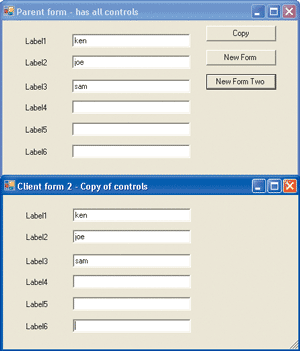
The form load event of frmNewArrayClient2, shows only this code:
Dim ctNew As Control
Dim i As Integer

If MyArrayOfControls.GetUpperBound(0) > 0 Then
    For i = 0 To MyArrayOfControls.GetUpperBound(0)
        ctNew = CloneControl(MyArrayOfControls(i))
        If ctNew.GetType.ToString <> "System.Windows.Forms.Button" Then
            Me.Controls.Add(ctNew)
        End If
    Next
End If
This code loops through the controls in MyArrayOfControls, creates a new control for each, and adds this new control to the form if it's not a button. The new controls are created by a call to the CloneControl function. This code is quite simple and performs the task of copying the controls. Now let's dig into the code that does the work behind CloneControl (see Figure 5). First, the CloneControl function executes this line of code to create a new control of the same type as the current control:
Dim newControl As Control = CType(NewAs(c), Control)
A close examination of the CType call shows a call to the NewAs method. The parameter of this function is the control you want to copy. The NewAs function is also shown in Figure 5.
If you examine the NewAs function definitions (there are two in Figure 5), you will see that they make what looks like recursive calls to themselves, but they're merely overloaded. This handy trick allows you to pass something as an object, making the first function call clean. Then that function can use some type of operator (such as GetType) on the parameter and then call the second function. This makes it easier for developers to use the function since they don't need to know the details of how to call the private function. The second NewAs function makes a call to the CreateInstance method of the assembly class. This method creates a new instance of the control by looking up the control's type. This allows you to create an instance of the control you want to clone.
The second line of the CloneProperties function actually copies the properties of the control (c) and maps those properties to the new control (newControl), as shown here:
CloneProperties(newControl, c, "Visible", "Size", "Font", _
    "Text", "Location", "BackColor", "ForeColor", "Enabled", _
    "BackgroundImage")
The CloneControl function finishes with an If block that allows you to set up special handling for particular types of controls. For instance, the sample has an If block that will copy particular properties when the control is a button or linklabel. It also makes a second call to CloneProperties to grab the additional properties.
The CloneProperties function is also shown in Figure 5. This function takes an array of the properties you want to set. Then it creates an instance of the PropertyAccessor class for each control. Finally, the code loops through the parameter names array and for each sets the target control's property equal to the source control's property. This copies the properties from the source control to the new control one by one.
Let's walk through the PropertyAccessor class (see Figure 6). The constructor for the class takes one parameter—a reference to either the source or target control. This reference is then set to the target_ variable. The Target property allows you to retrieve a reference to the control.
The interesting code in this class defines the Item property. This property is declared as the Default property for the class. You can see that this property takes one parameter:
Default Public Property Item(ByVal propertyName As String) As Object
The Get method of this property returns the property you want to access. Then it creates a new instance of PropertyInfo and sets this to the property you requested:
Dim prop As PropertyInfo = Me.Target.GetType().GetProperty(propertyName)Once you have the property, you can return its value by calling the GetValue method. The Set method is also pretty straightforward. The new value is passed, so all you need to do is create an instance of the PropertyInfo class as in the Get method:
Dim prop As PropertyInfo = Me.Target.GetType().GetProperty(propertyName)Then you can call SetValue to actually set the value of the property:
prop.SetValue(Me.Target, value, Nothing)That's it. Now you have the code to easily copy a set of controls from one form to another.
Both of this month's questions looked difficult to accomplish at first. But in both cases the Microsoft® .NET Framework provided a straightforward way to accomplish the task. Sometimes you just have to be persistent to find the solution you're looking for.
Send your questions and comments for Ken to basics@microsoft.com.