Q Can you tell me why the following C# form doesn't run where I want it to on my desktop?
public class MyForm : Form
{
  MyForm()
  {
    Text = "Why doesn't this form go where I want it to go?" ;
    DesktopLocation = new System.Drawing.Point (500, 500) ;
  }
  static void Main()
  {
    Run(new MyForm());
  }
}
The title bar text in the C# form is fine, but the DesktopLocation seems to be ignored.
A You can set DesktopLocation all you want, but the Microsoft® .NET Framework won't pay attention unless you also set StartPosition in the following way:
StartPosition = FormStartPosition.Manual;
As Mensa members might guess, Form.StartPosition tells the .NET Framework where to start your form. The possible values are CenterParent, CenterScreen, Manual, WindowsDefaultBounds, and WindowsDefaultLocation. Even non-Mensa folks can guess what these mean. By default, StartPosition is WindowsDefaultLocation, the CreateWindow equivalent of CW_USEDEFAULT.
Some of you might wonder, what's the difference between Location and DesktopLocation? Answer: Location is relative to the screen, whereas DesktopLocation is relative to the desktop work area—that is, the screen minus the task bar. That's something to consider if you suspect your user may be crazy enough to dock her task bar on the top of the screen (I hear this is more common in the Southern Hemisphere).
With a top-docked task bar, setting Form.Location = (0,0) results in a partially hidden form, whereas DesktopLocation = (0,0) makes everything first rate. DesktopLocation also works on multiple-monitor systems. (If you aren't programming on a 9 × 12 wall-sized array of plasma screens, you're nobody.) And in case you're wondering where to find DesktopLocation in the Properties window in Visual Studio®—it's not there. You can only set DesktopLocation from code. What a concept!
Q If I want to parse a hex string in C++, I can use sscanf like so:
char hex[] = "0xFA10";
int i;
sscanf( hex, "%x", &i );
But is there a way for me to do this in the .NET Framework? Is there an equivalent to sscanf?
A There's no direct equivalent of sscanf in the .NET Framework; however, you can use Int32.Parse to parse a hex number like so:
Int32 i = Int32.Parse("0FA10", NumberStyles.HexNumber);
Note that in the .NET Framework, you must omit the leading "0x". HexNumber is actually a composite style, equivalent to the following flags: AllowLeadingWhite | AllowTrailingWhite | AllowHexSpecifier. In general, the Framework does parsing with—what else—a Parse method. Many classes in the Framework have one. There's Decimal.Parse and Double.Parse for decimals and doubles, IPAddress.Parse for IP addresses, and DateTime.Parse for dates. My favorite is Enum.Parse, which uses reflection to convert the text name of any Enum to its actual enum value. For example, the following code
Console.WriteLine("val={0:x}.",
   Enum.Parse(typeof(NumberStyles),
   "AllowHexSpecifier"));
yields the line:
val=00000200.
To see which classes have Parse functions, open your MSDN® disc to the Index, select ".NET Framework" as your docset filter, and then type "Parse".
Q I have a small application that I distribute over the Internet. I've seen programs that display a message when a new version is available and ask the user if he wants to upgrade. How can I implement a version checker like that for my own app?
A I'll answer in just a moment, but first let me use my little soapbox to warn against one of my pet peeves: programs that display annoying messages that require action. In particular, I hate programs that ask whether I want to upgrade. I always answer no and check the "stop bothering me" checkbox (hopefully there is one). There's nothing wrong with informing users that a new version is out, but please do it in a way that doesn't require action—except, of course, to get the new version.
Now that I've scared you away, there are many ways to implement the Web-based version checking. The February 2003 issue of MSDN Magazine has an article by Jason Clark that describes a whole new protocol called BITS for just this purpose (see BITS: Write Auto-Updating Apps with .NET and the Background Intelligent Transfer Service API).
On the other hand, if all you really want is something that is quick and simple, you can store your current version number in a text file on your Web site and download it via FTP. Downloading is easy with the Windows® Internet API, also known as WinInet. Just open a connection, open an FTP session, open the file, and read. Here's the sequence in a nutshell:
HINTERNET h = InternetOpen(...);
HINTERNET hftp = InternetConnect(..,INTERNET_SERVICE_FTP,..);
HINTERNET hftpfile = FtpOpenFile(...);
InternetReadFile(...);
As with all things, beauty dwells in the details, so let's dive deeper. I wrote a class called CWebVersion (see Figure 1) that encapsulates all you need for a simple over-the-Web version checker. You can use it in the following manner:
if (CWebVersion::Online()) {
  CWebVersion ver("ftp.mysite.com");
  if (ver.ReadVersion("MyVersionNumber.txt")) {
    DWORD maj = ver.dwVersionMS;
    DWORD min = ver.dwVersionLS;
  }
}
CWebVersion::Online first checks to see if the user is online. I'll let you decide what to do when the user is offline—my recommendation is to do nothing, or display a "Check for latest version" button so users can explicitly initiate the connection. (The WinInet function for this is InternetAttemptConnect.) Whatever you do, don't connect without asking. Many people still use modems in order to surf the Web.
Assuming your application has access to a connection, all you have to do to read the version number is instantiate a CWebVersion object, passing the address of your FTP server, and call CWebVersion::ReadVersion with the name of your version file. ReadVersion expects a one-line text file that looks something like this:
4,3,0,0That is, four numbers separated by commas, the same format as the FILEVERSION and PRODUCTVERSION fields in your VS_VERSION_INFO resource. ReadVersion reads the numbers into two 32-bit DWORDs, dwVersionMS and dwVersionLS. Windows uses 64-bit version numbers, so you can release 18,446,744,070,000,000,000 versions before cycling. That's 18 quintillion in the U.S., but only 18 trillion in Europe. It would take 8 million programmers 75,000 years to write that many versions, if they released a new one every second. You better hurry up and hone up your typing skills!
Figure 2 shows a test program called GetVersion that uses CWebVersion to read a version number over FTP; Figure 3 shows the program running.
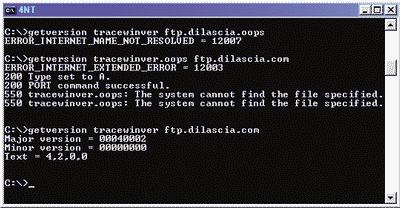
How does CWebVersion work? Most of the functions are self-explanatory; however, a few details merit explanation. To see if the system is connected, CWebVersion::Online calls a WinInet function InternetQueryOption to get the INTERNET_OPTION_CONNECTED_STATE. If the state returned has the INTERNET_STATE_CONNECTED flag, you're live. To access the Internet and read the version file, CWebVersion uses another home-grown class, CInternetHandle, which encapsulates HINTERNET (see Figure 4). CInternetHandle's raison d'être is to make error-checking easier. If a WinInet function fails, GetLastError tells why. But CloseInternetHandle clears the error code, so you have to call GetLastError before CloseInternetHandle. You end up with code that looks something like Figure 5. With CInternetHandle, the code is much cleaner: ReadVersion only has to check the error at the end. C++ automatically closes all the CInternetHandles as flow control leaves your function.
As MFC programmers know, MFC already has classes that encapsulate WinInet, so why didn't I use MFC instead of writing my own CInternetHandle? Because it's a waste to load all of MFC when all I need is a few lines of code. Less code is usually better than more. By making CWebVersion independent of MFC, non-MFC apps can use it too—without worrying whether users have the latest DLLs installed. That's a big plus, especially for applications you deliver over the Web.
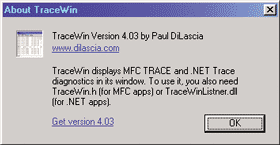
To put everything together in a real app, I added over-the-Web version checking to the TraceWin program from last month's column. Figure 6 shows the changes (you can download the full program from the link at the top of this article). TraceWin reads the Web version when it starts, and stores it in a data member m_dwNewVersion (TraceWin only uses 32 bits for its version number). The About dialog compares this version number with the one stored in the program's VS_VERSION_INFO resource, which was stored when the program was compiled. If the Web version is newer, the dialog displays a "Get version XXX" link (see Figure 7). If the Web version is the same or unavailable (because the user is offline), TraceWin hides the link. Please note that TraceWin reads the version number only once, when it first starts—not every time the user invokes About. Reading a 10-byte file over FTP is fast enough to escape notice during startup, but slow enough to delay a dialog. Even with small files, you should be careful when and where you FTP. If you want the fastest possible UI, download the file in a separate thread. Happy programming!
Send your questions and comments for Paul to cppqa@microsoft.com.