
There are many different controls that can be contained by the form: listboxes, buttons, checkboxes, textboxes, and so forth. One of the most commonly used controls is the Label control, which displays either a read-only text string or an image. Another commonly used Windows Forms control, the LinkLabel control, is closely related to and derived from the Label control.
The LinkLabel control provides read-only text as a hyperlink, offering a user the ability to navigate to a URL. Although LinkLabels may seem simple and one dimensional, it turns out that they offer the developer surprising depth and versatility.
A Label control (such as System.Windows.Forms.Label) is used in order to display read-only text on a form. If you need to display text with read/write capability, you'll need to use the TextBox or RichTextBox control, which allow users to enter text.
Labels serve several different functions. At the most basic level, they are used to display text on the client area of a form—text such as titles, paragraphs, or captions for other controls. The text displayed by a Label is contained in its Text property, which can either be set at design time or programmatically at run time.
In addition to the Text property, the Label control has many other properties. The most commonly used properties are listed in Figure 1 and Figure 2. Figure 1 lists the properties inherited from the Control class. In addition to all these properties, the Label control also has the properties described in Figure 2. Valid values of several of these properties are contained in an appropriate enumeration; these include the BorderStyle and FlatStyle enumerations (see Figure 3), as well as the ContentAlignment enumeration (see Figure 4).
Closely related to and derived from the Label control is the LinkLabel control (System.Windows.Forms.LinkLabel), which displays one or more hyperlinks. In addition to the properties and features I discussed for the Label control, the LinkLabel has the additional properties listed in Figure 5. The behavior of the link is controlled by the LinkBehavior property, which has values from the LinkBehavior enumeration, listed in Figure 6.
The LinkLabel control does not automatically provide an actual link to anything, nor (by default) does it change the color of the link once it has been visited, as most browsers do. It is easy to add these features, however, using the properties and events of the LinkLabel class (see Figure 5 and Figure 6).
When a LinkLabel control is clicked, it raises an event called LinkClicked, which has an event argument of the LinkLabelLinkClickedEventArgs. This event argument exposes a single read-only property called Link, which returns the link that was clicked. Several different ways of handling this event will be demonstrated later using both C# and Visual Basic® .NET.
The LinkLabel control exposes a Links property (listed in Figure 5), which is of the LinkLabel.LinkCollection type, a subclass of LinkLabel. This is a collection of all the links contained by the LinkLabel control. As a class in itself, this collection exposes some useful properties and methods (see Figure 7). Each link within a LinkLabel control is represented by a member of the LinkLabel.Link class. Each Link has the properties that are listed in Figure 8.
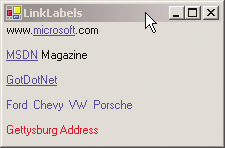
Figure 9 demonstrates many of the features of the LinkLabel control in Visual Basic .NET. The code download for this article contains a C# version as well (see the link at the top of this article). In these examples, there are five LinkLabel controls, each implemented differently. The first three LinkLabels are single links to Web pages, the fourth is a LinkLabel containing four different links, and the last links to a text file, which automatically opens up Notepad (or whichever application on the user's system is the default for files with a .txt extension).
When either of these programs are compiled and run, you will get the form shown in Figure 10. The underlined links are blue, as is the line showing the four automobile brands. The Gettysburg Address line is red.
The LinkLabels program starts by declaring two LinkLabel controls as form member variables. These two controls need to be declared this way because they are referenced outside the constructor; the other controls aren't, and instead can be local to the constructor method. In C#, this would look like the following:
LinkLabel lnkMsft;
LinkLabel lnkMsdnMag;
In Visual Basic .NET it would look like this:
dim lnkMsft as LinkLabel
dim lnkMsdnMag as LinkLabel
The first LinkLabel control to be created, lnkMsft, provides a link to the Microsoft Web site. As you can see in Figure 10, the Text property of the control is the full URL of the Web site, but the actual link is comprised only of the word Microsoft. The implementation technique used here requires that the Text property contains the full URL, but the limited characters comprising the link just demonstrates how that is done. In C#, you'd do the following:
lnkMsft = new LinkLabel();
lnkMsft.Parent = this;
lnkMsft.Text = "www.microsoft.com";
lnkMsft.Location = new Point(0,0);
lnkMsft.AutoSize = true;
lnkMsft.BorderStyle = BorderStyle.None;
lnkMsft.LinkArea = new LinkArea(4,9);
lnkMsft.LinkClicked +=
   new System.Windows.Forms.LinkLabelLinkClickedEventHandler(
      lnkMsft_LinkClicked);
The Visual Basic .NET code is almost identical, except for the typical language differences (like no trailing semicolons). The last statement at the end of the snippet, which adds the event handler method to the LinkClicked event delegate, is written differently. The Visual Basic .NET equivalent for adding the handler to the delegate is as follows:
AddHandler lnkMsft.LinkClicked, AddressOf lnkMsft_LinkClickedIn this snippet, all the lines of code are similar to those used for a normal Label control except for the last two statements, which set a value for the LinkArea property and the event handler for the LinkClicked event.
The LinkArea property is used to specify which characters in the Text property comprise the actual link. The first argument specifies the zero-based starting character and the second argument specifies the number of characters, including the starting character, to include in the link.
This control has its own event handler method. As you will see shortly, some of the LinkLabel controls on this form use a generic event handler. In C#, the event handler method looks like this:
private void lnkMsft_LinkClicked(object sender,
                                 LinkLabelLinkClickedEventArgs e)
{
     lnkMsft.Links[lnkMsft.Links.IndexOf(e.Link)].Visited = true;
     System.Diagnostics.Process.Start(lnkMsft.Text);
}
The Visual Basic .NET version is similar:
private sub lnkMsft_LinkClicked(ByVal sender as object, _
                                ByVal e as LinkLabelLinkClickedEventArgs)
     lnkMsft.Links(lnkMsft.Links.IndexOf(e.Link)).Visited = true
     System.Diagnostics.Process.Start(lnkMsft.Text)
end sub
This code uses the Link property exposed by the event args to index the proper link. The code then uses this link in order to set the Visited property of the LinkLabel.Link to true. This has the effect of changing the color of the link to the VisitedLinkColor. Since the VisitedLinkColor property has not been set for this control, it defaults to purple.
The second line in the method invokes a static form of the System.Diagnostics.Process.Start method. This method takes a file name (at the minimum) and starts the default application associated with files with that file extension. Notice that in this method, the file name passed in is the Text property of the control. It is also possible to pass in a file name which is not displayed as the Text property of the control, as you will see on the other LinkLabels in this example. Since the file name passed in is actually a URL, the default application that runs is a Web browser.
The next LinkLabel control on the form, lnkMsdnMag, displays a link to msdn.microsoft.com/msdnmag. This is very similar to the Microsoft link, except that it adds a link to the Links collection rather than specifying the LinkArea property. This is done with the following line of code:
lnkMsdnMag.Links.Add(0,4,"msdn.microsoft.com/msdnmag")The Add method takes three arguments. The first two are the same as for LinkArea—the zero-based starting character and the length of the link. The third argument is the URL to which you want to link. Notice that this LinkLabel displays one text string, specified in the Text property for the control, but links to a URL different from that text string, specified in the Links property.
This LinkLabel control also has its own two-line event handler for the LinkClicked event, reproduced here in C#:
private void lnkMsdnMag_LinkClicked(object sender,
                         LinkLabelLinkClickedEventArgs e)
{
   lnkMsdnMag.LinkVisited = true;
   System.Diagnostics.Process.Start(e.Link.LinkData.ToString());
}
And here's the same code in Visual Basic .NET:
private sub lnkMsdnMag_LinkClicked(ByVal sender as object, _
                     ByVal e as LinkLabelLinkClickedEventArgs)
   lnkMsdnMag.LinkVisited = true
   System.Diagnostics.Process.Start(e.Link.LinkData.ToString())
end sub
Similar to the previous event handler, the first line sets the LinkVisited property to true so that it will display with the color specified by the VisitedLinkColor. It's not set for this control, so it defaults to purple. The LinkVisited property should only be used for a LinkLabel that has a single link. The Microsoft.com LinkLabel could have also used the simpler LinkVisited property rather than indexing into the Links collection and setting the Visited property; in this case they are equivalent. Later, I will present a situation where the indexing syntax is required.
The MsdnMag LinkLabel links to the URL specified. This is accomplished with the third argument of the Add method that I just mentioned in conjunction with the argument passed to the Process.Start method, as shown here:
System.Diagnostics.Process.Start(e.Link.LinkData.ToString())Here, the LinkData property contains the URL. This is converted to a string, using the ToString method, and that is given to the Start method. Since this is a valid URL, a browser will be instantiated.
The next LinkLabel control on the form, lnkGotDotNet, displays a hyperlink to GotDotNet. This is very similar to the MsdnMag hyperlink, but with two changes. First, the Add method dynamically calculates the length of the Text property to specify the length of the linked characters:
lnkGotDotNet.Links.Add(0,lnkGotDotNet.Text.ToString().Length, _
                     "www.GotDotNet.com")
This ensures that the entire Text property will properly display as a link without having to manually count the characters and hardcode the literal number in the arguments.
The second change is a move to a generic event handler, namely, one that can be used with any number of LinkLabel controls. The line that adds this generic event handler to the LinkClicked event delegate in C# is:
lnkGotDotNet.LinkClicked +=
   new System.Windows.Forms.LinkLabelLinkClickedEventHandler(
      lnkGeneric_LinkClicked);
In Visual Basic .NET it is:
AddHandler lnkGotDotNet.LinkClicked, AddressOf lnkGeneric_LinkClicked
The generic event handler method is called lnkGeneric_LinkClicked. It is shown here in C#:
private void lnkGeneric_LinkClicked(object sender,
                                    LinkLabelLinkClickedEventArgs e)
{
   LinkLabel lnk = new LinkLabel();
   lnk = (LinkLabel)sender;
   lnk.Links[lnk.Links.IndexOf(e.Link)].Visited = true;
   System.Diagnostics.Process.Start(e.Link.LinkData.ToString());
}
In Visual Basic .NET, it looks like this:
private sub lnkGeneric_LinkClicked(ByVal sender as object, _
                             ByVal e as LinkLabelLinkClickedEventArgs)
   dim lnk as LinkLabel = new LinkLabel()
   lnk = CType(sender, LinkLabel)
   lnk.Links(lnk.Links.IndexOf(e.Link)).Visited = true
   System.Diagnostics.Process.Start(e.Link.LinkData.ToString())
end sub
The first two lines in the method declare a LinkLabel variable, lnk, and instantiates it with the object called sender, which raised the event. That object is cast to the LinkLabel type in the second line in the method. Then the Visited property of the Link in the collection is set to true, just as was done for the Microsoft.com event handler. Finally, the Process.Start method is called, just as was done for the MsdnMag event handler.
The next LinkLabel example on the form demonstrates a control with multiple links in a single control. The Text property contains the text to display for four different links. There are four separate Add statements, each of which specifies a starting character, the number of characters in the link, and the URL to link to:
lnkMulti.Text = "Ford  Chevy  VW  Porsche"
lnkMulti.LinkBehavior = LinkBehavior.HoverUnderline
lnkMulti.Links.Add(0,4,"www.Ford.com")
lnkMulti.Links.Add(6,5,"www.chevrolet.com")
lnkMulti.Links.Add(13,2, "www.vw.com")
lnkMulti.Links.Add(17,7,"www.porsche.com")
This LinkLabel control also demonstrates the use of the LinkBehavior property, which is why these links did not display as underlined, as shown in Figure 10. These do display as underlined when the mouse hovers over each individual link.
The lnkMulti control uses the generic LinkClicked event handler, which uses the indexed Visited property rather than the unitary LinkVisited property. Consequently, each individual link correctly displays if it has been visited. If you had substituted the following line of code into the generic event handler
lnk.LinkVisited = truethen the first link in the collection (Ford), would have displayed as visited, irrespective of which of the four links was actually clicked.
The final LinkLabel control in the application links to a file on the local hard drive rather than a URL. In this case, it is a text file containing Lincoln's Gettysburg Address, located in the root of the C drive. The generic event handler is again used. The file name has a .txt extension, so the default application for that extension is used to open it (typically, Notepad).
This LinkLabel also sets several of the display properties that change the default colors and behavior of the link. The code that creates the control in C# is reproduced in Figure 11. The code for the same function in Visual Basic .NET is shown in Figure 12.
The LinkVisited and Visited properties are reset every time the application is run, unlike the default behavior of most browsers. If you want those properties to persist from one program execution to the next, you must save the information somewhere, such as in an XML configuration file.